Creating an additional expense
While working on a dispatch order, the driver can quickly record additional expenses to keep track of them and send them to the dispatcher for approval.
- From the dispatch order list or details, select the correct dispatch order, then select Create record.
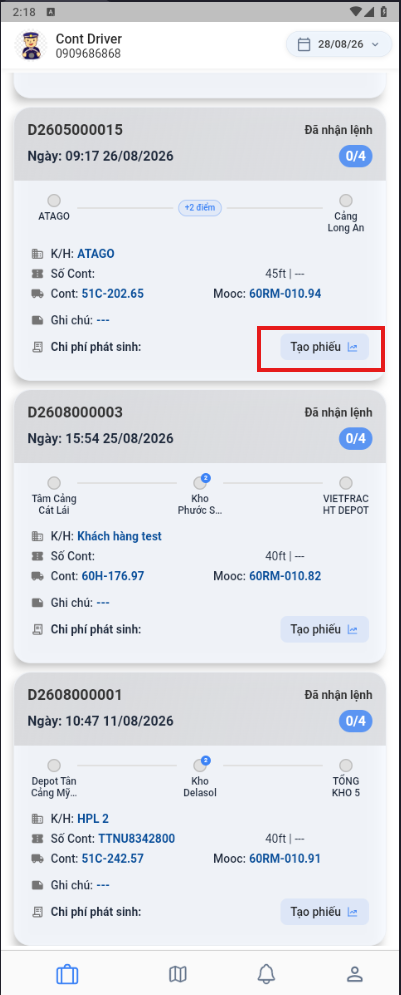
- The app shows the expense entry screen.
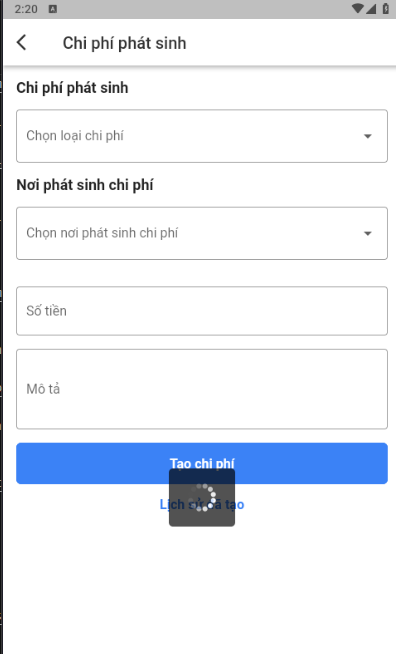
- Select the type of expense to create.
- Select the location where the expense occurred if the expense type requires one. If it is not required, you can skip it.
- Enter the amount and a Description if needed.
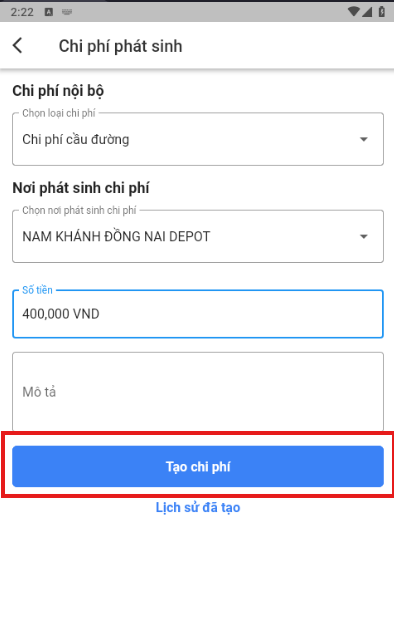
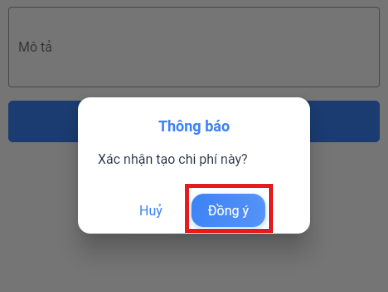
- Select Create expense, then confirm the creation.
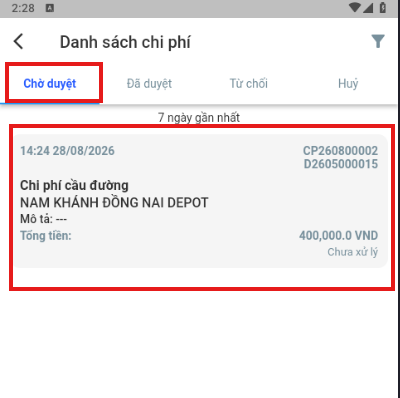
Viewing the expenses you created
- Open the User management menu.
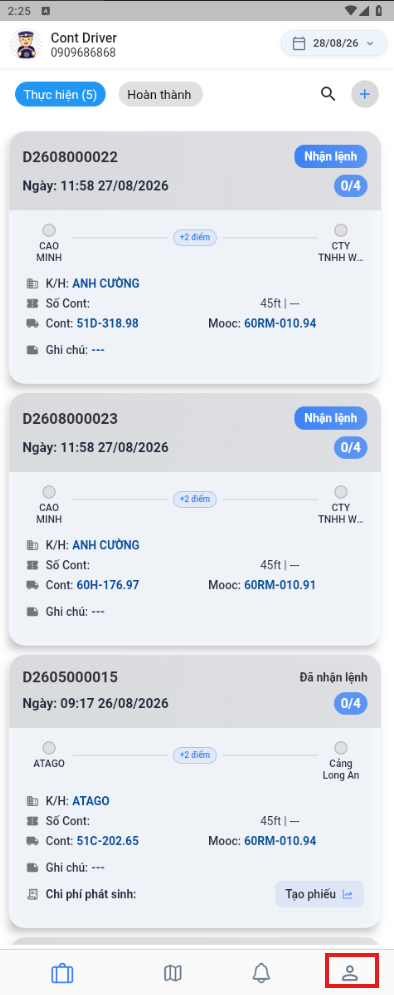
- Select Additional expenses.
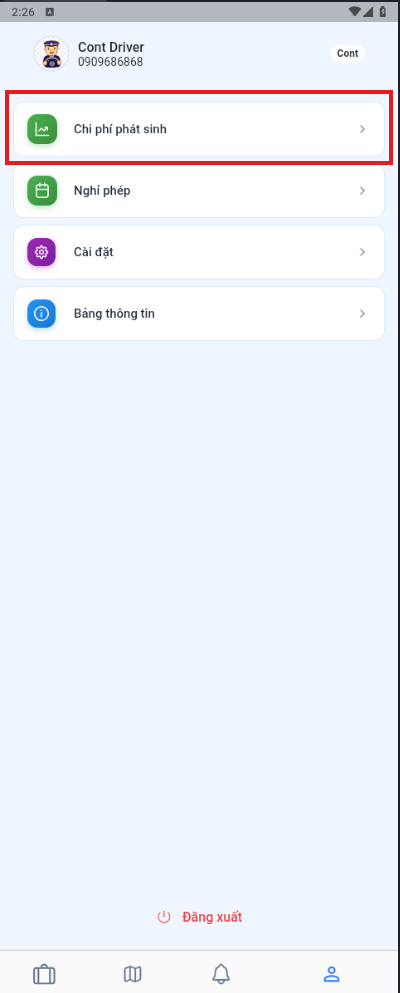
Note: The expense list is grouped by processing status.
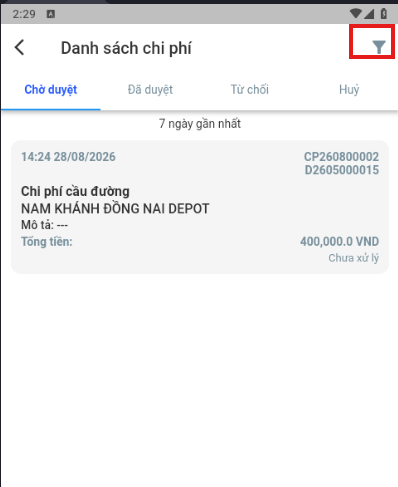
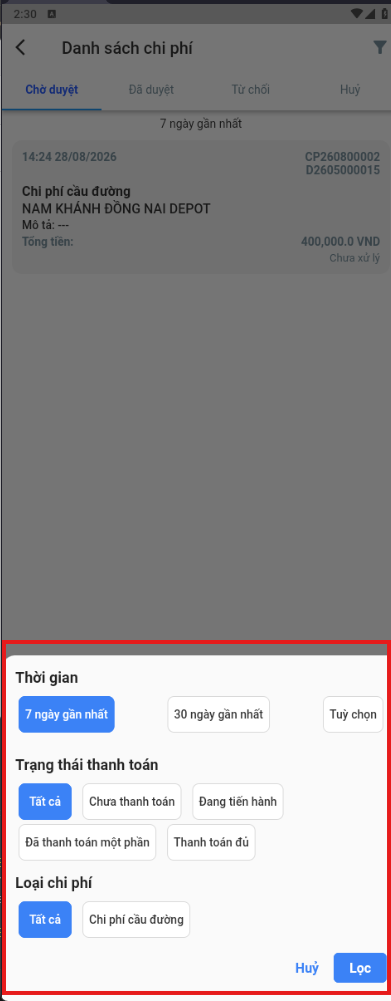
- Use the filters to find the expenses you need.