This feature lets you change the background color (highlight) of a record so you can:
-
Mark important orders
-
Sort records quickly by how far along they are
-
Follow a list more easily at a glance
Steps
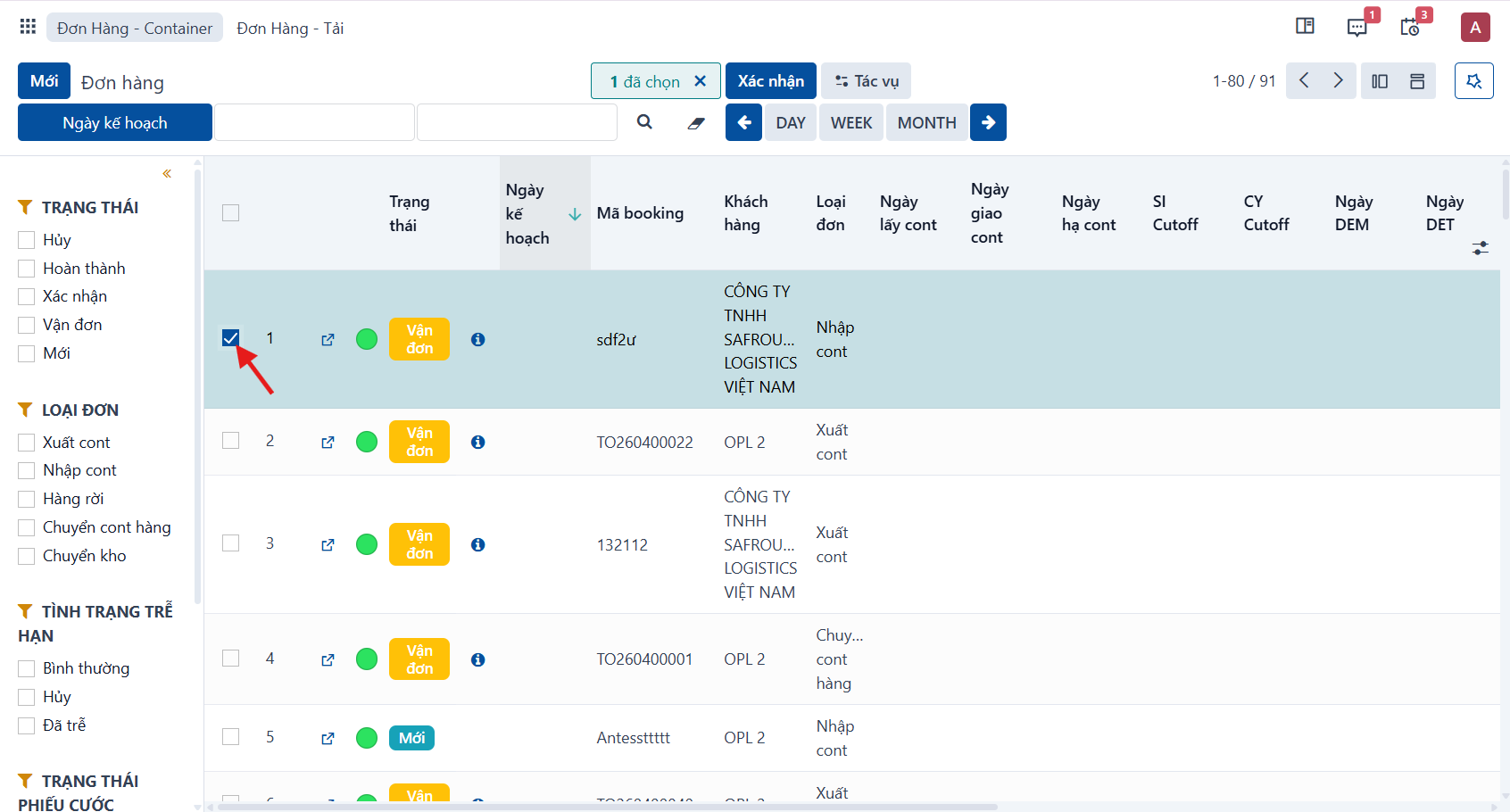
Step 1
Tick the record you want to mark.
Step 2
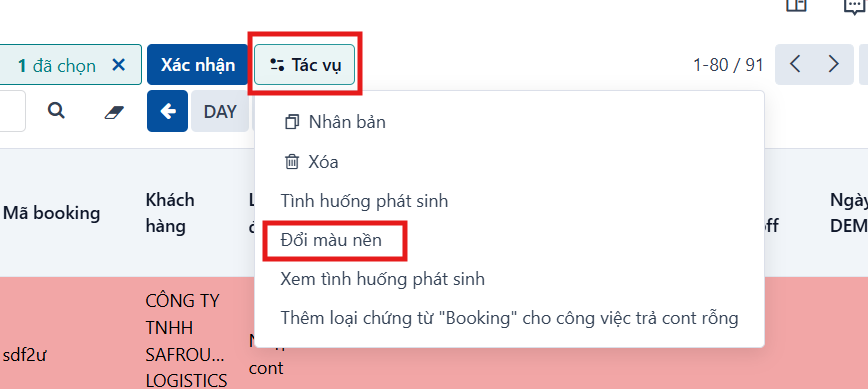
Click the action button on the toolbar.

Step 3
Select the “Change row color” function.
Step 4
Choose a color.
- Option 1: pick one from the preset palette.

- Option 2: pick a custom color.
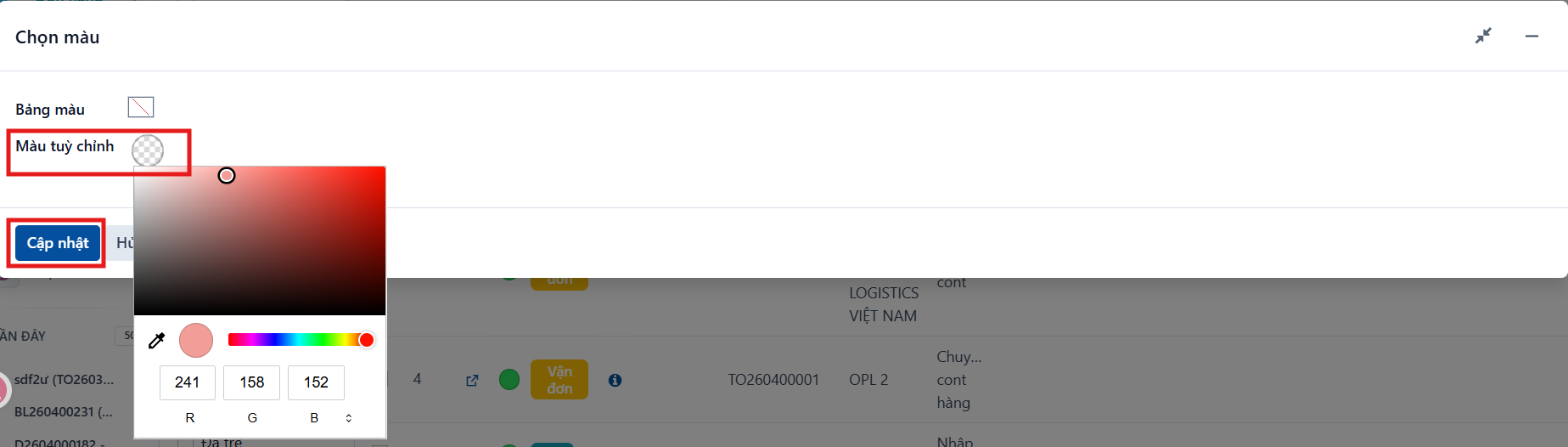
Once you have chosen a color, click ‘Update’ and the system applies it to the selected record.
Notes
-
You can select one or several records and change their color at once.
-
The color is only a visual marker; it does not affect any business data.
-
The colors available can be configured at system level.