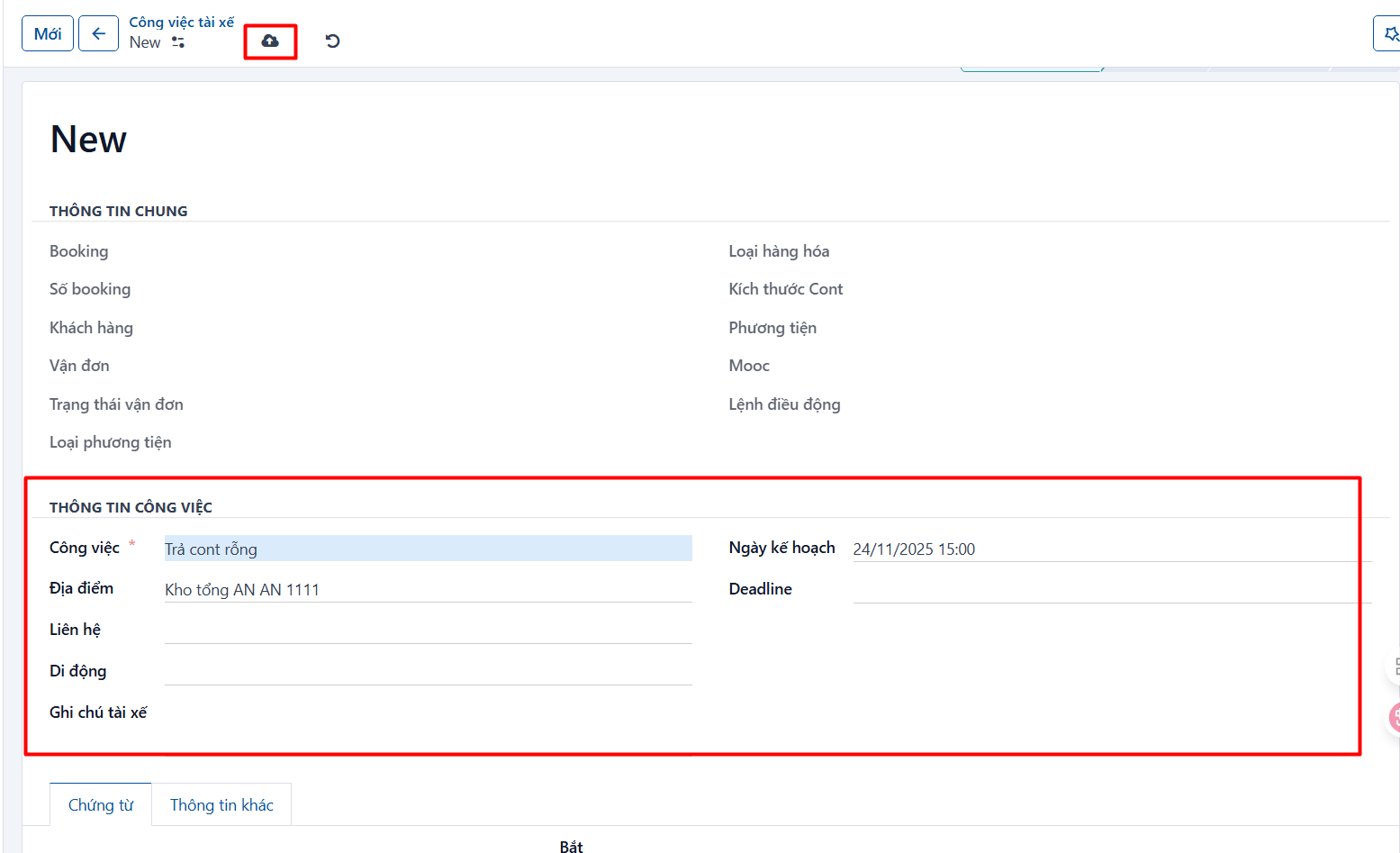
The system separates tasks into two kinds
-
Tasks tied to a customer’s container or waybill:
-
These are the tasks that get the waybill done, for example: pick up empty container, drop off empty container, pick up laden container, deliver laden container.
-
They have to be created from the container or waybill screen.
-
They also affect the driver’s salary, because driver salary is calculated per waybill.
-
-
Tasks not tied to a customer’s container or waybill:
-
These tasks do not belong to any container or waybill. The system still lets you assign a trailer and create a dispatch order for them so a driver can carry them out as usual.
-
Whether dispatchers use this depends on how they work.
-
Creating a task for a container or waybill
- Step 1: open a container or waybill → go to the [Tasks] tab.
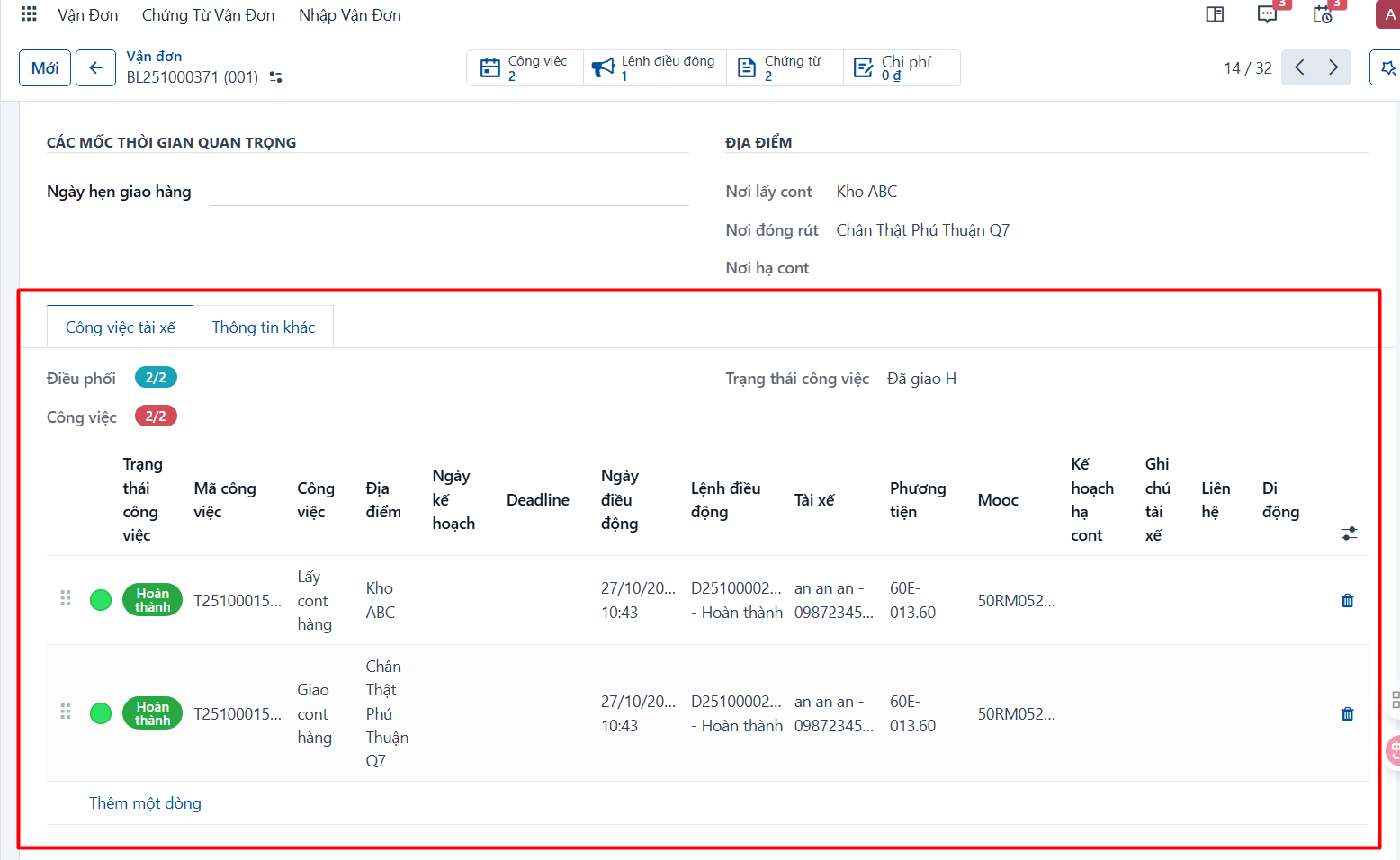
- Step 2: click Add a line to create a task for that container or waybill. The system shows a popup for the task details; fill in the Task information section as shown below.
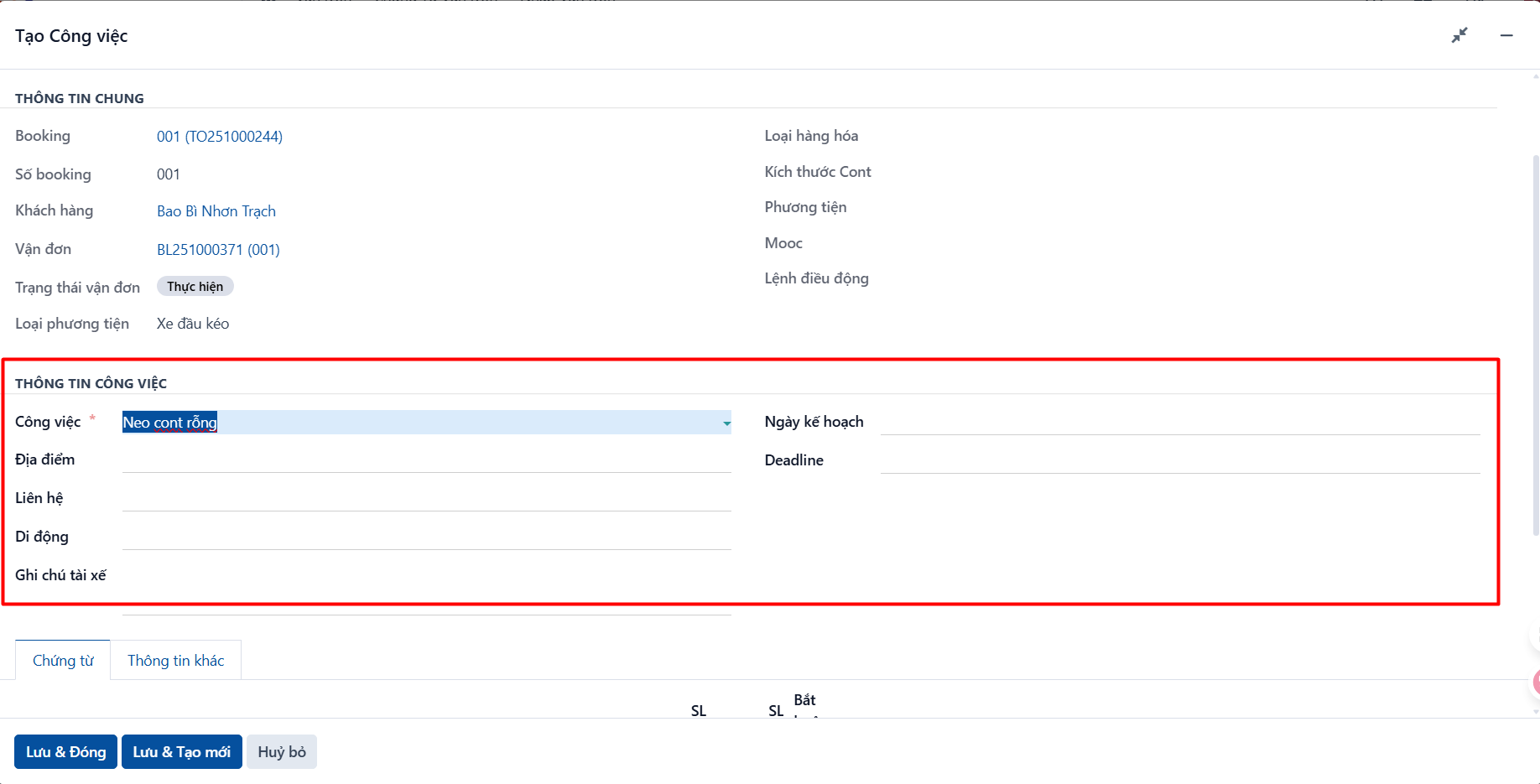
| Field | Description |
|---|---|
| Task | Select a task type, for example “Pick up empty container”. |
| Location | Select where the task is carried out. |
| Contact | Enter the contact at that location, if any. |
| Mobile | Enter the contact’s phone number. |
| Note for the driver | A note for the driver, if any. It is shown in the mobile app. |
| Planned date | Enter the date you plan the driver to carry out the task. The dispatcher sets a date that makes dispatching work well. |
| Deadline | Enter the deadline from the paperwork, or one the dispatcher sets to keep track of the task. |
| Plan | The container plan at the customer’s warehouse. Applies to tasks such as “Deliver laden container” or “Drop off empty container” at a customer warehouse. The values are: drop container, detach trailer, store vehicle. This is also shown in the mobile app so the driver knows the plan. |
- Step 3: click SAVE & CLOSE if you only want one task, or SAVE & NEW to create another one.
The task you added appears as below; you can reorder it so the sequence is right.
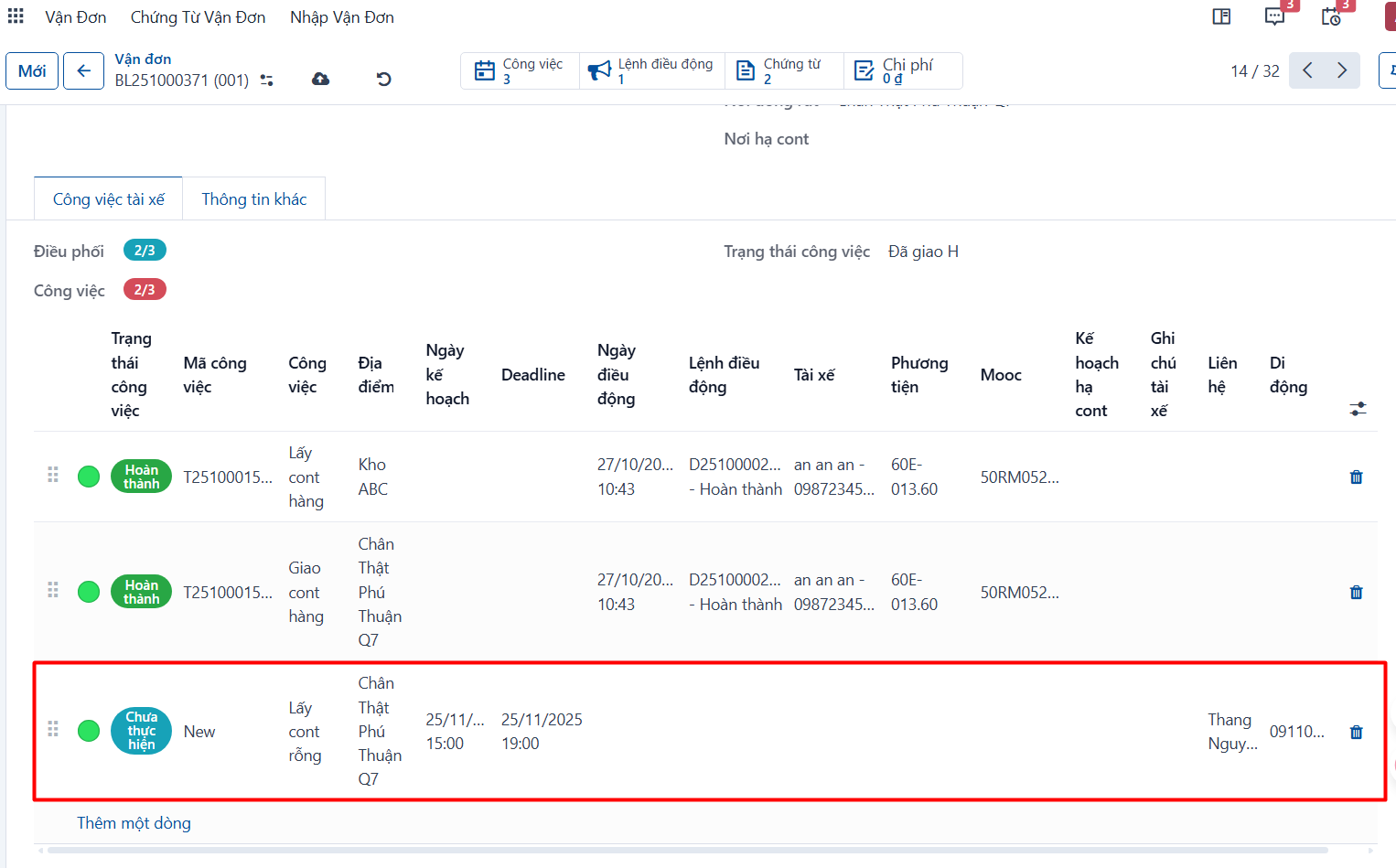
- Step 4: click SAVE on the container or waybill, or press CTRL + S, to save.
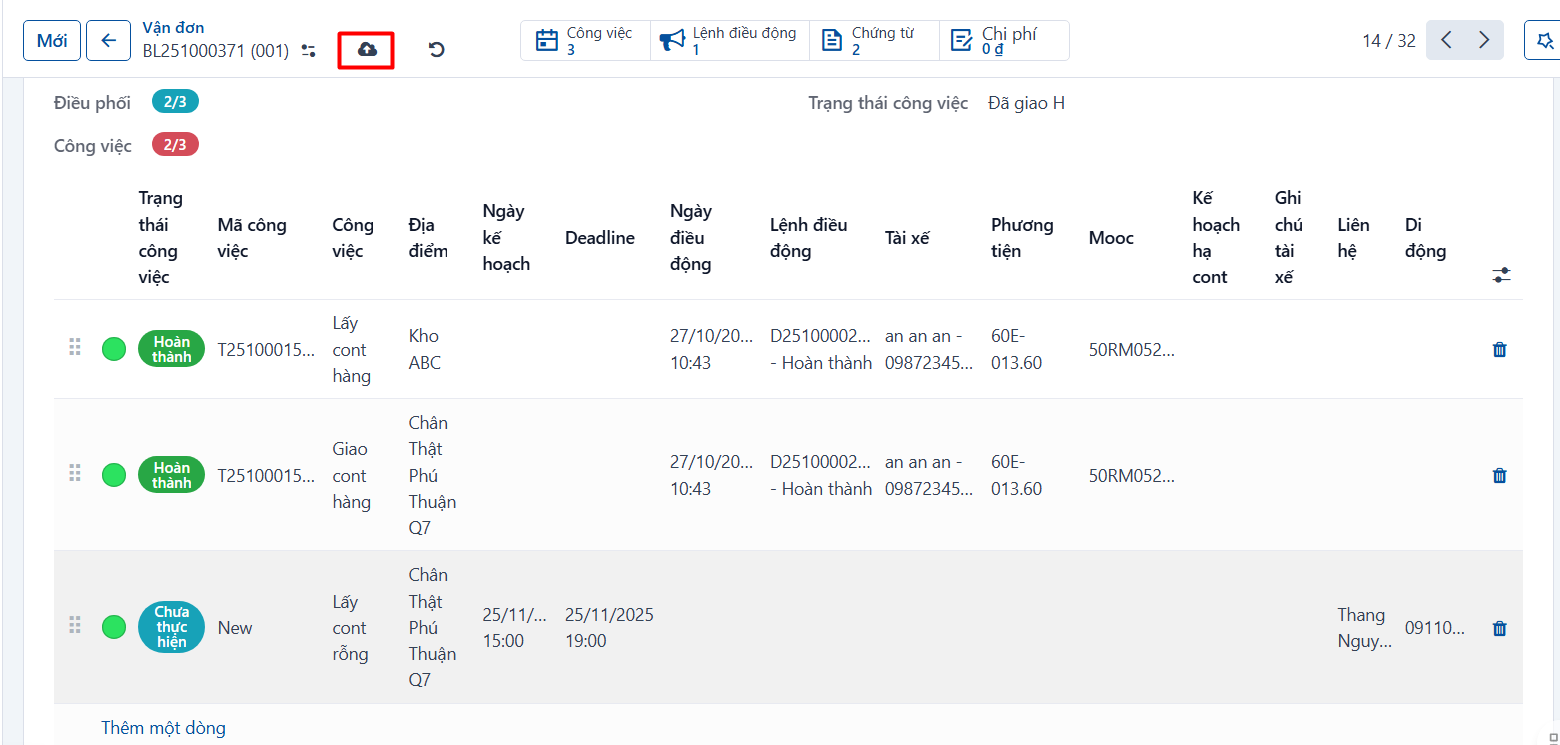
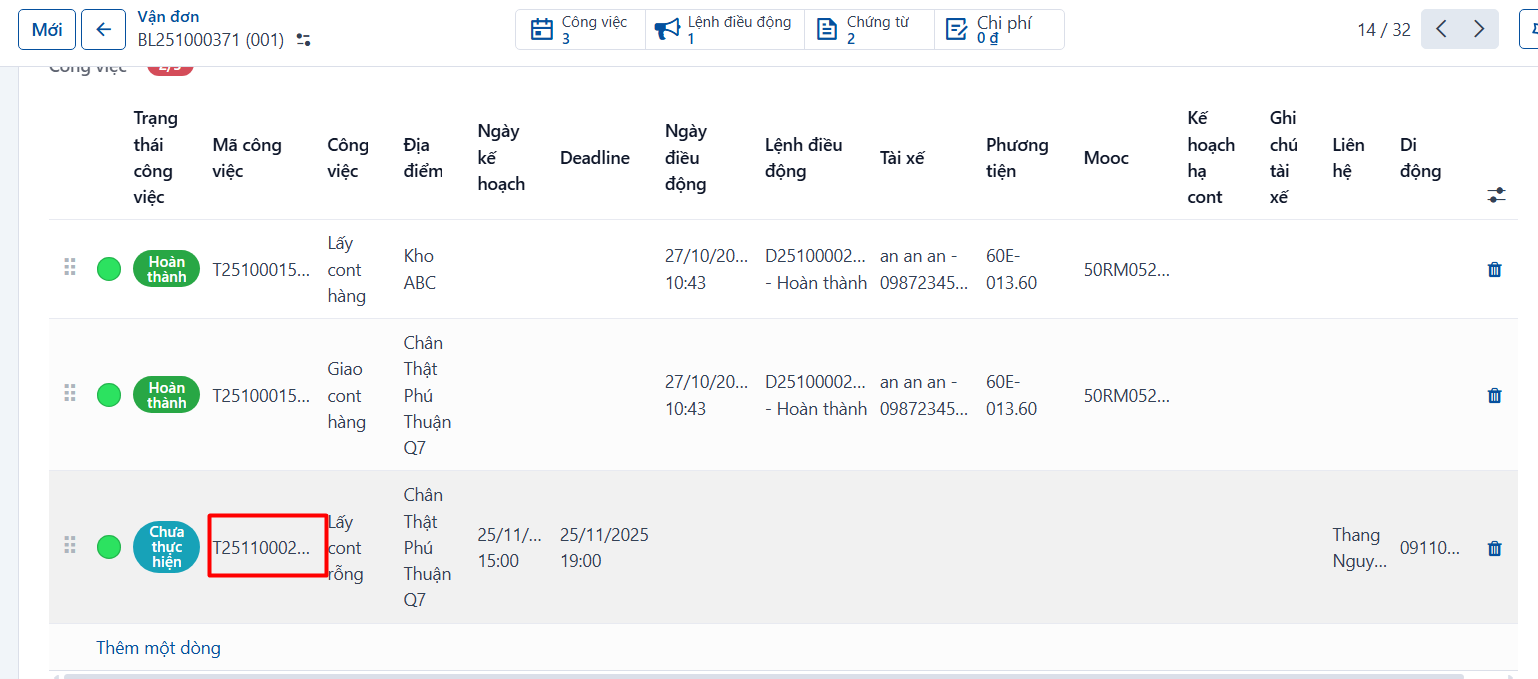
Once that is done the system generates a task code, as below:
Creating a task not tied to a container or waybill
- Step 1: go to one of the driver task management menus → click NEW to create a task.
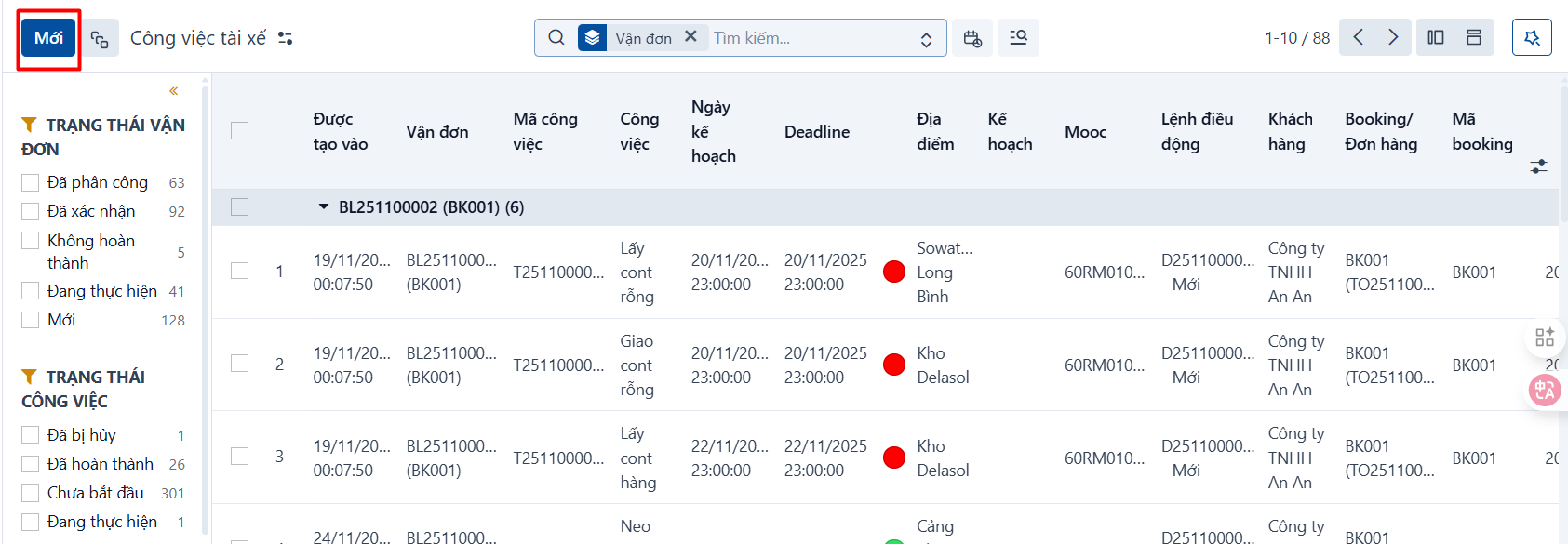
- Step 2: enter the task details, the same way as for a waybill task, and click SAVE to finish.