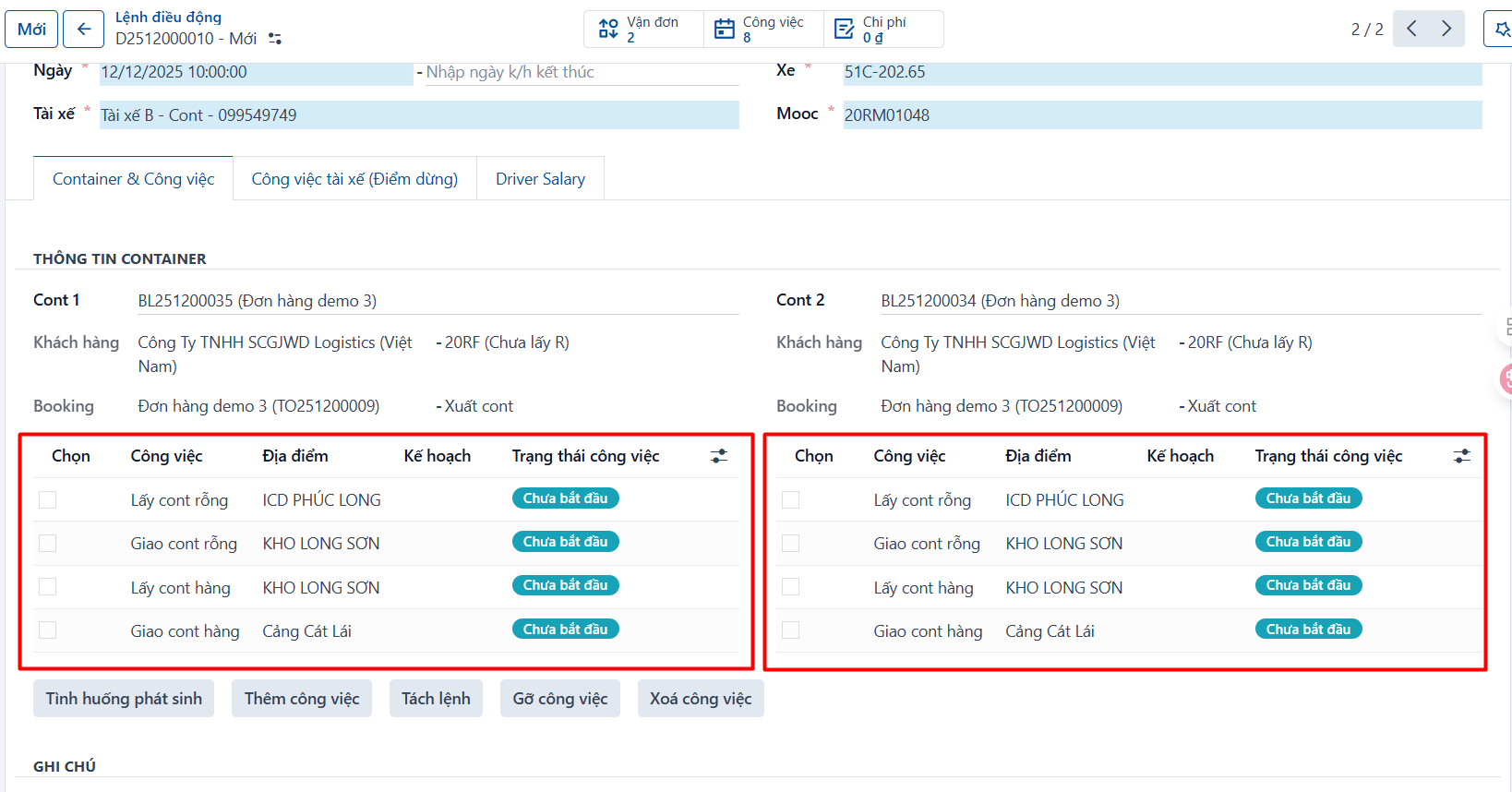
Ways to create a dispatch order
Option 1: from the “Container and waybill management” menu
- Follow the instructions in “Creating a dispatch order for a container or waybill”.
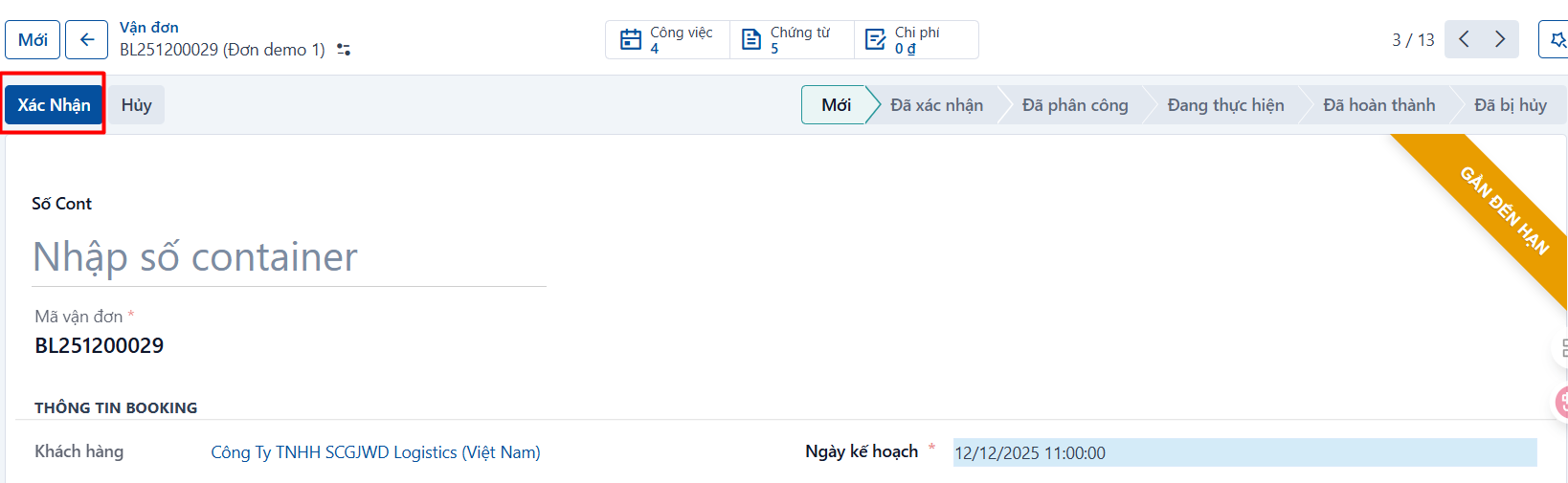
Option 2: from the details screen of a container with no dispatch order yet
-
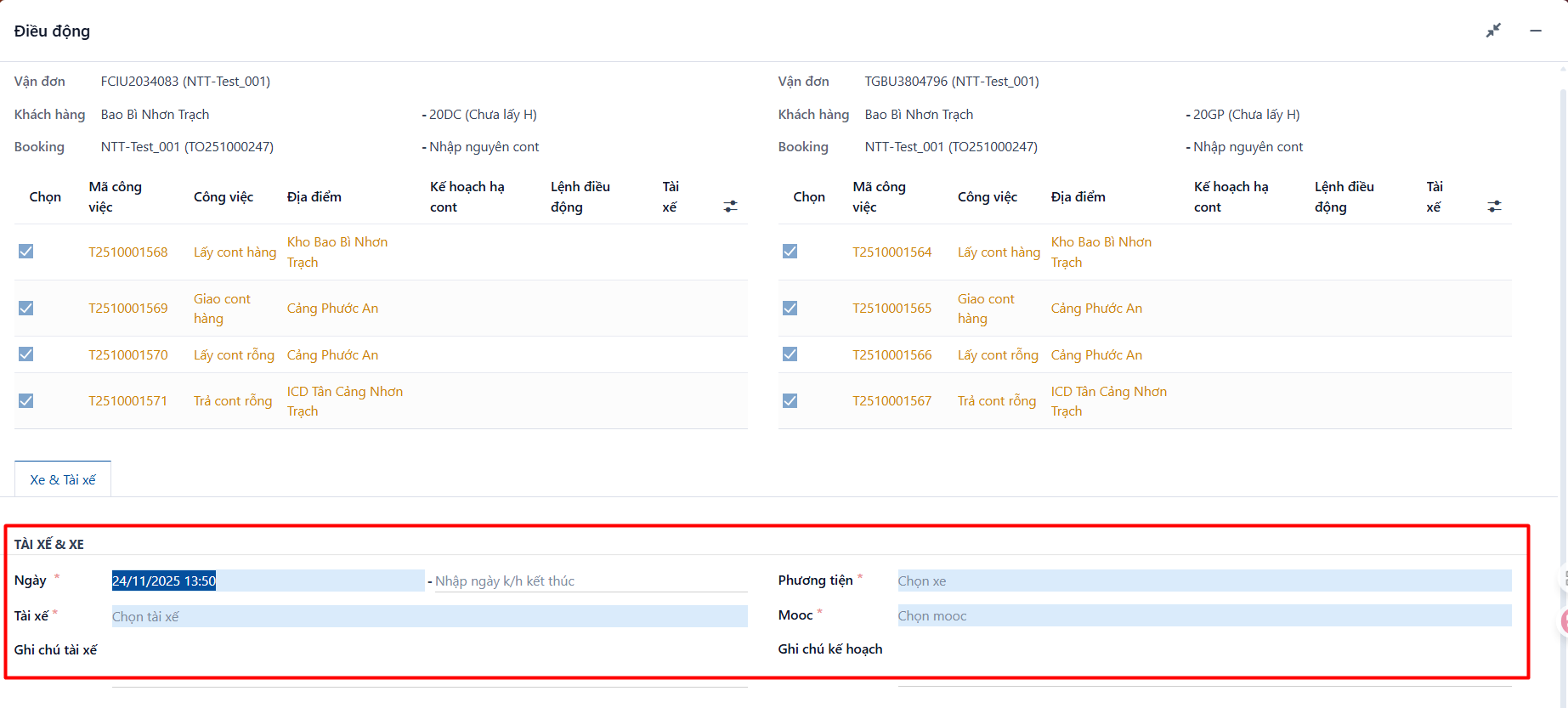
Step 1: on the container details screen → click Dispatch → the dispatch order window opens.
-
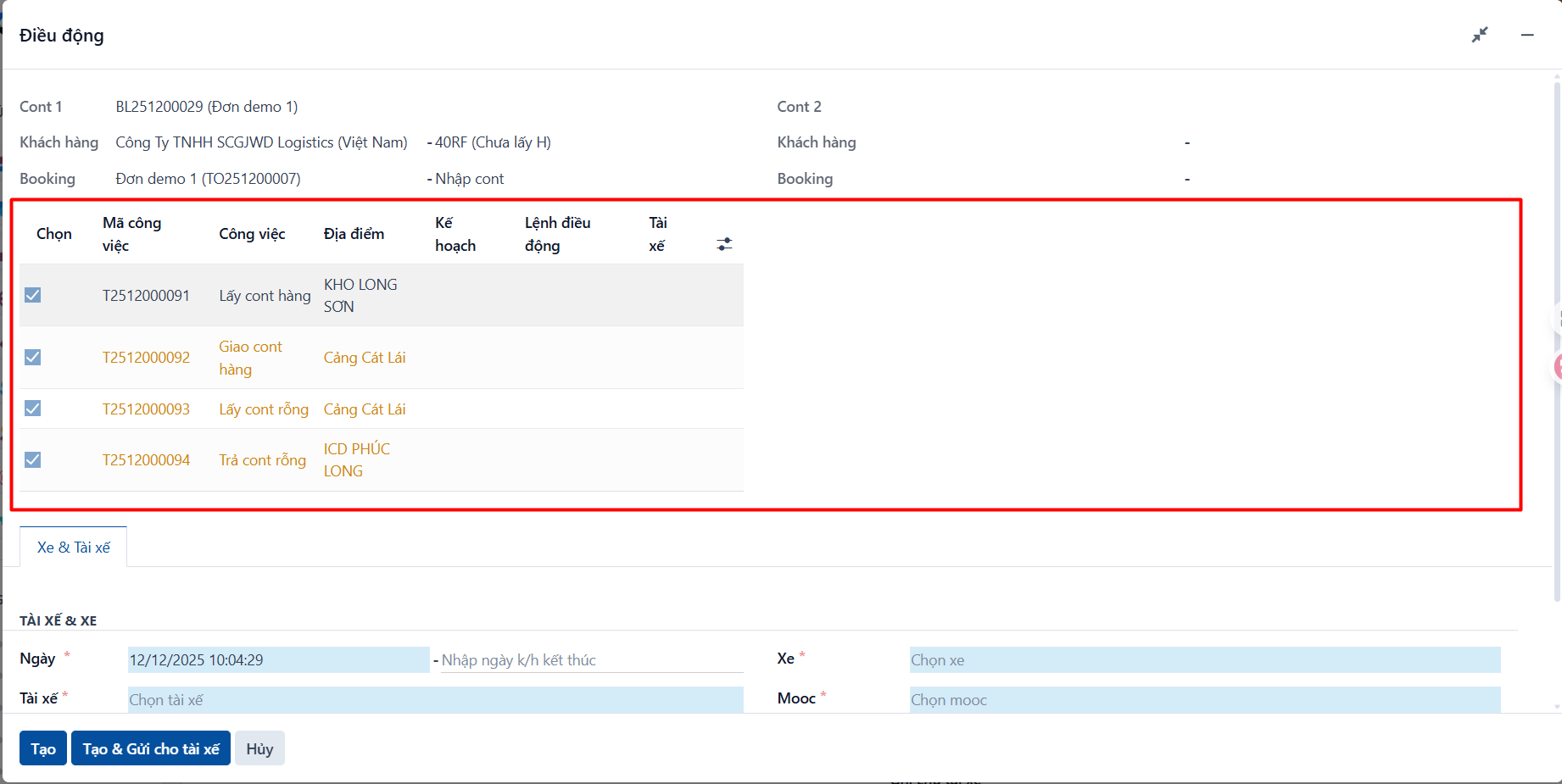
The image below shows the two task lists of the selected waybill or container:
-
Two 20ft containers can share one dispatch order.
-
You can choose which tasks to dispatch by ticking or unticking the Select column. The system ticks the tasks that have no vehicle yet by default.
-
Tasks that already have a dispatch order still appear in this popup; for those, the Dispatch order column has a value.
-
-
The [Vehicle & Driver] tab: fill this in when you want to create a new dispatch order for the tasks.
-
Planned date: the system takes it from the planned date of the selected tasks.
-
Driver: select the driver being assigned.
-
Vehicle: when you select the driver, the system fills in that driver’s default vehicle. You can still choose another one.
-
Trailer: when you select the driver, the system fills in the default trailer for that driver’s vehicle. You can still choose another one.
-
Planned date: the system takes it from the planned date of the selected tasks.
-
Note for the driver: a note for the dispatch order.
-
-
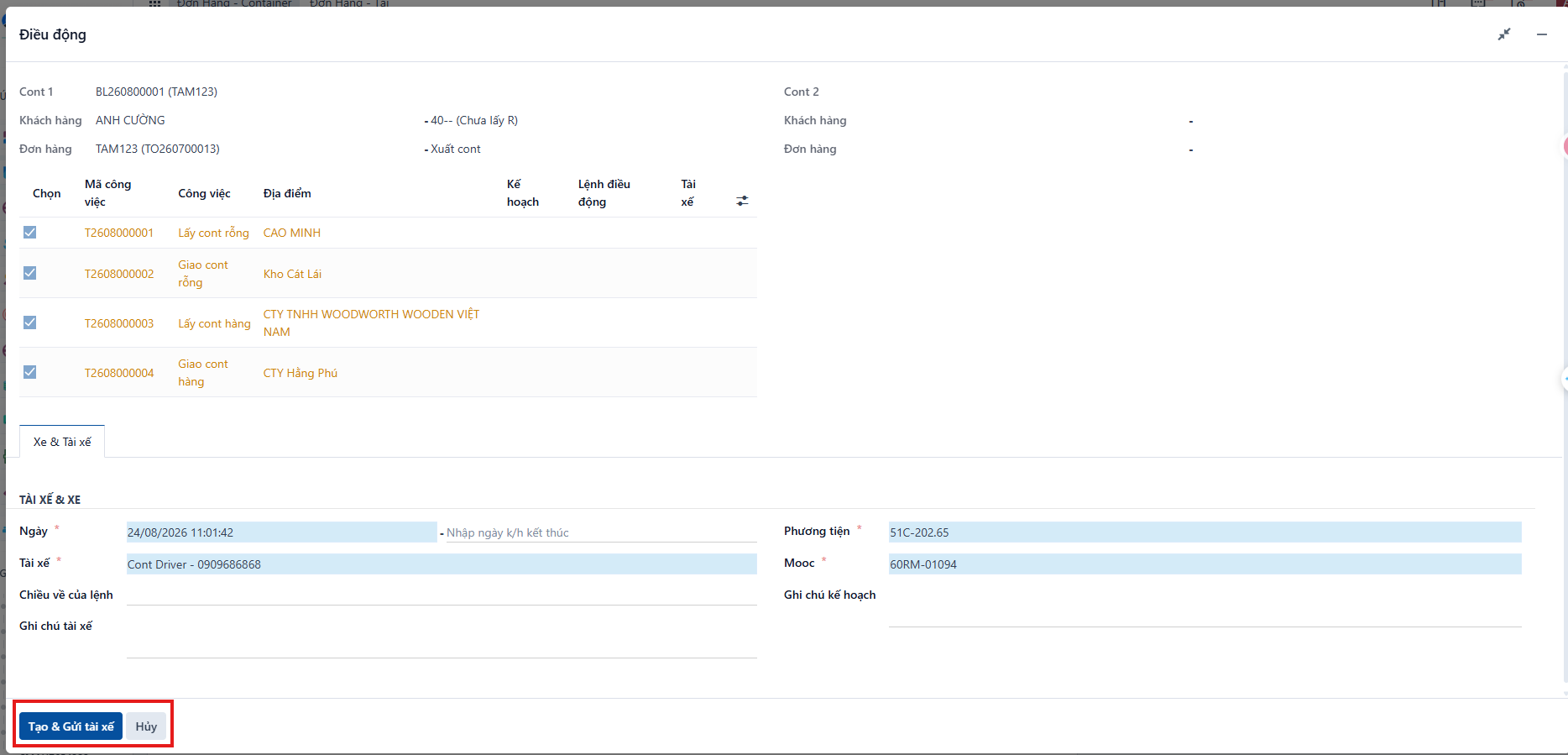
Step 2: once everything is filled in, click CREATE or CREATE AND SEND TO DRIVER on the popup.
-
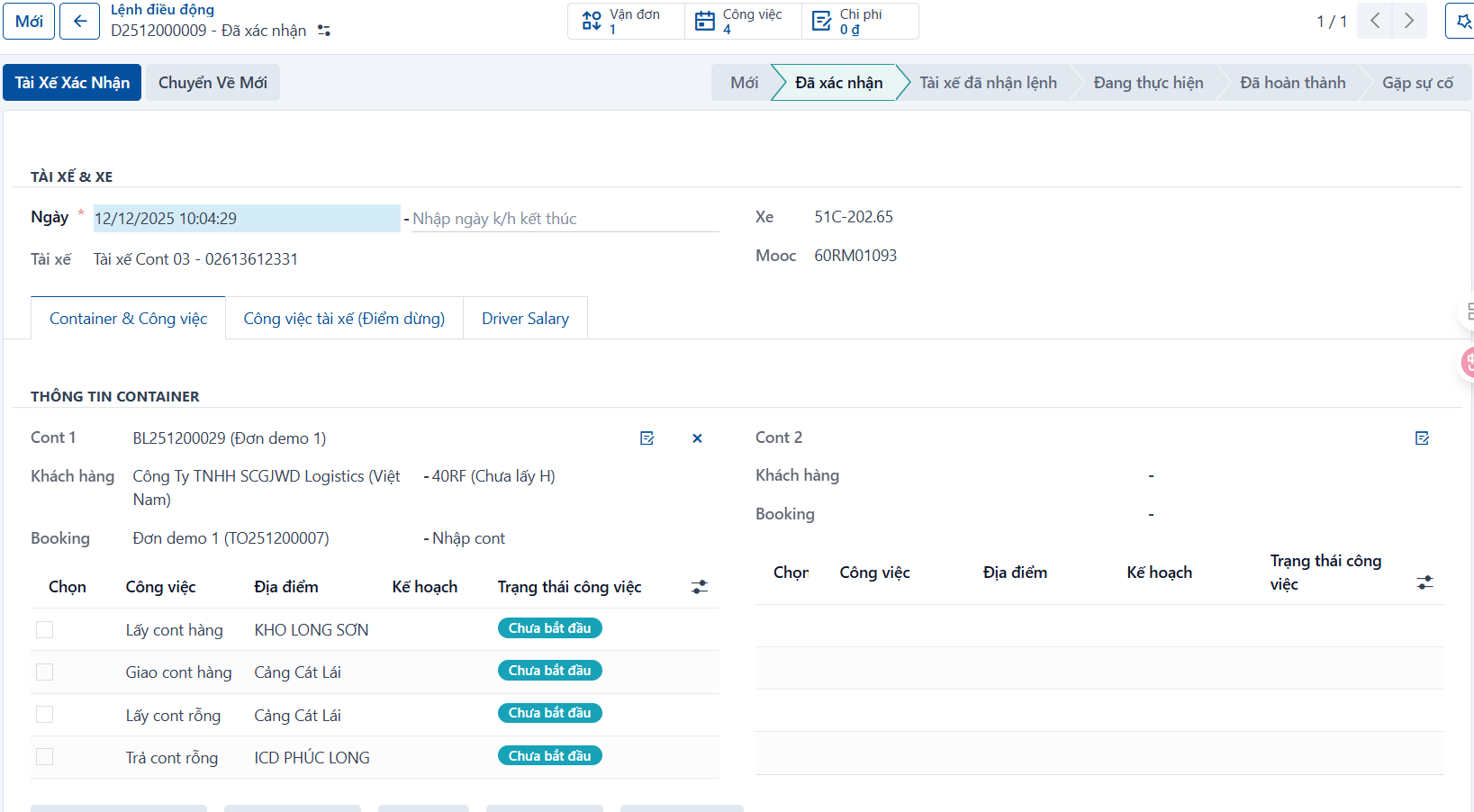
If you choose to create the dispatch order: the system creates it and opens its screen.
-
If you choose to create and send it to the driver: the system creates it, sends it to the driver, and opens its screen.
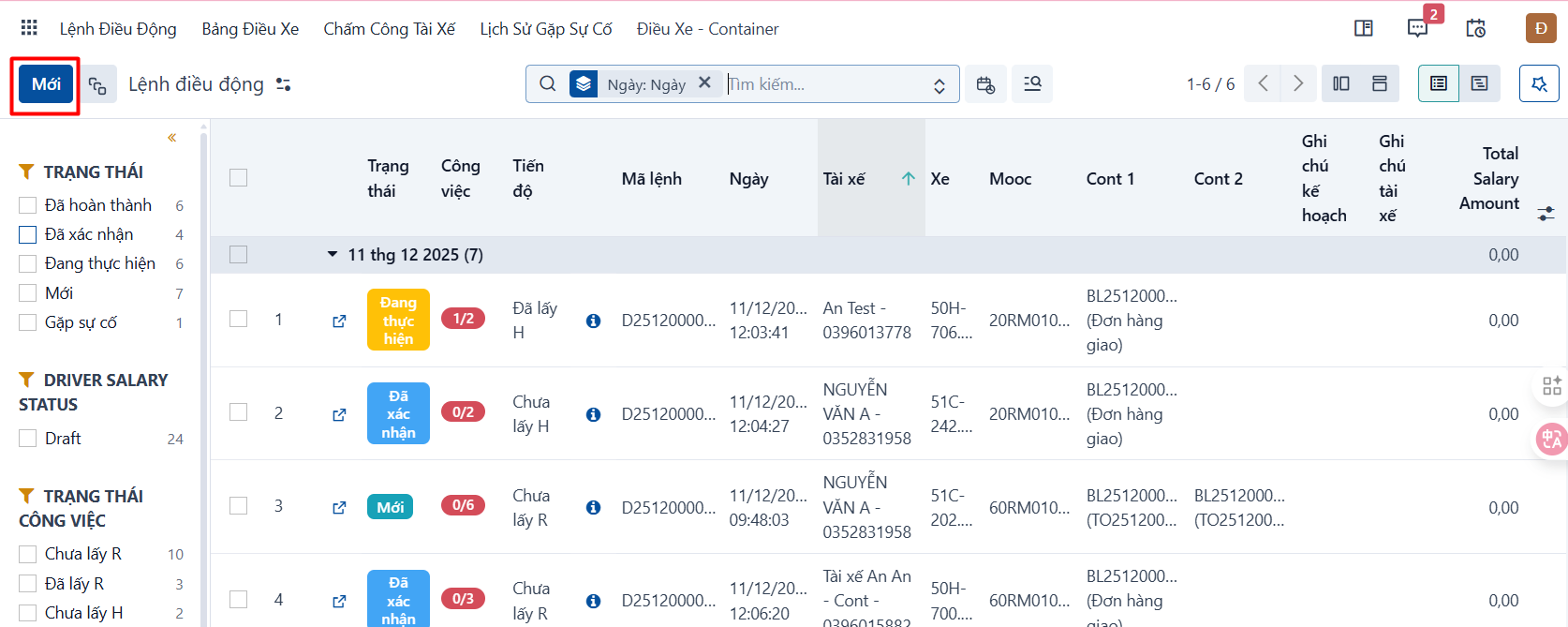
Option 3: from the “Dispatch orders” menu
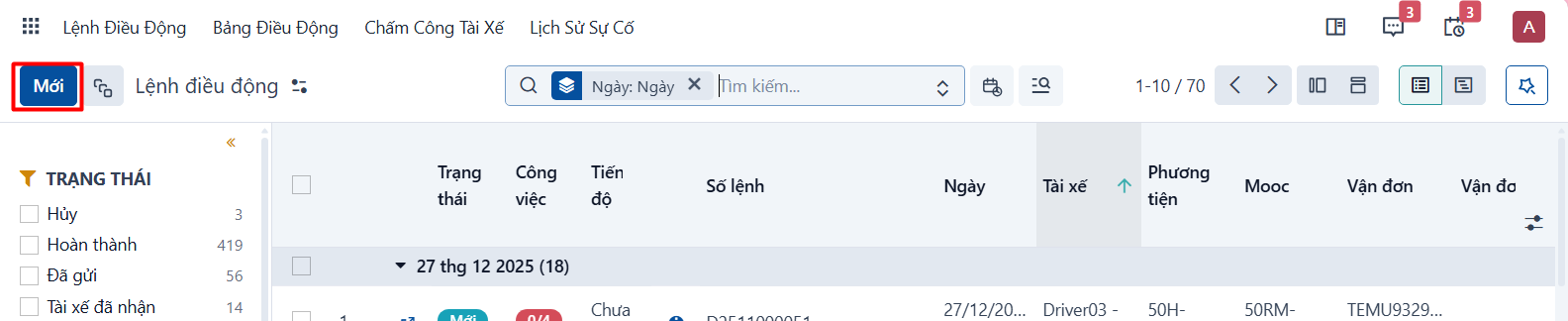
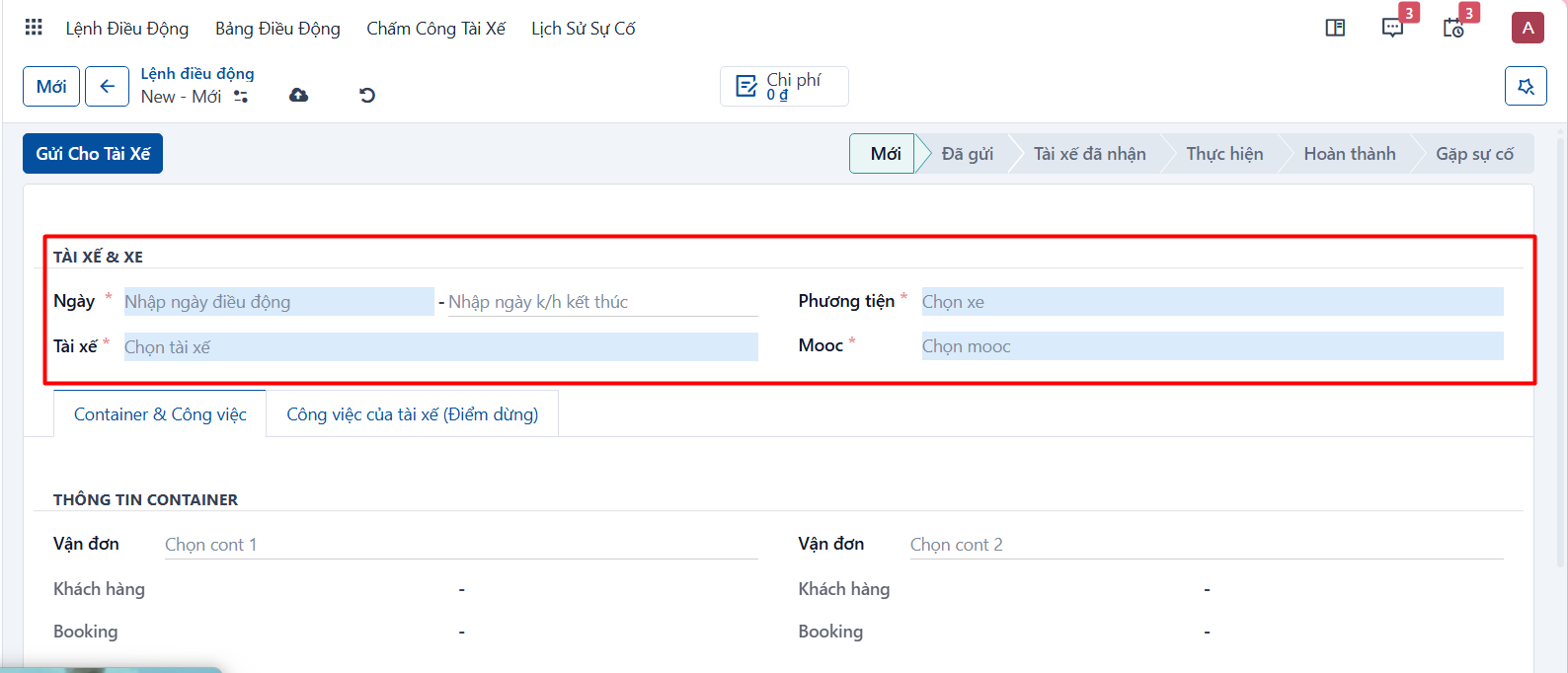
- Step 1: go to a Dispatch orders menu → click New.
- Step 2: select the vehicle and the driver you want to assign.
-
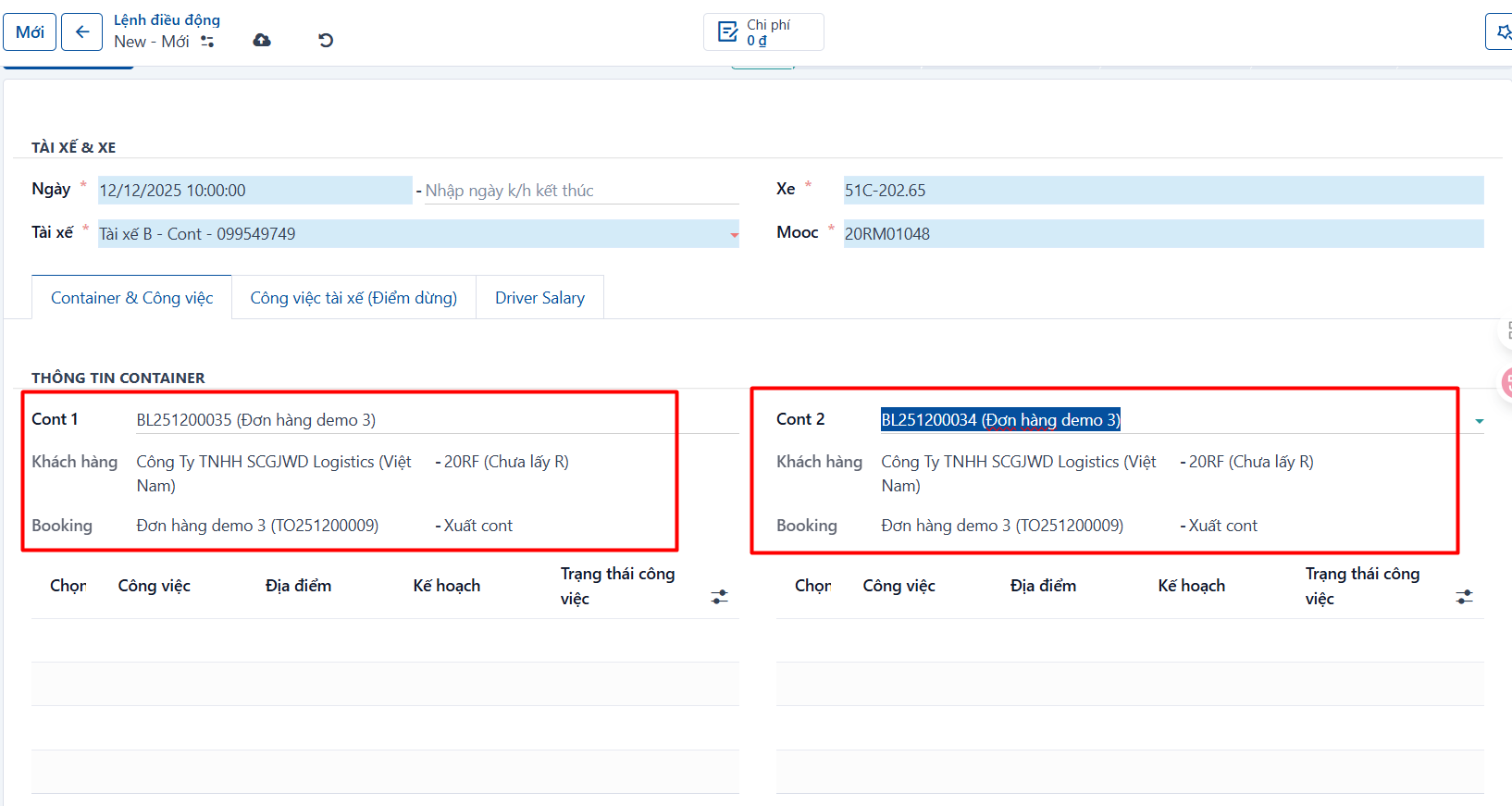
Step 3: select the waybill to assign.
-
Select the waybill you want from the waybill list. One dispatch order can take at most two waybills, for waybills with 20ft containers. For containers of 40ft or more, only one waybill fits in one dispatch order.
- Step 4: save the dispatch order with its assigned waybill.
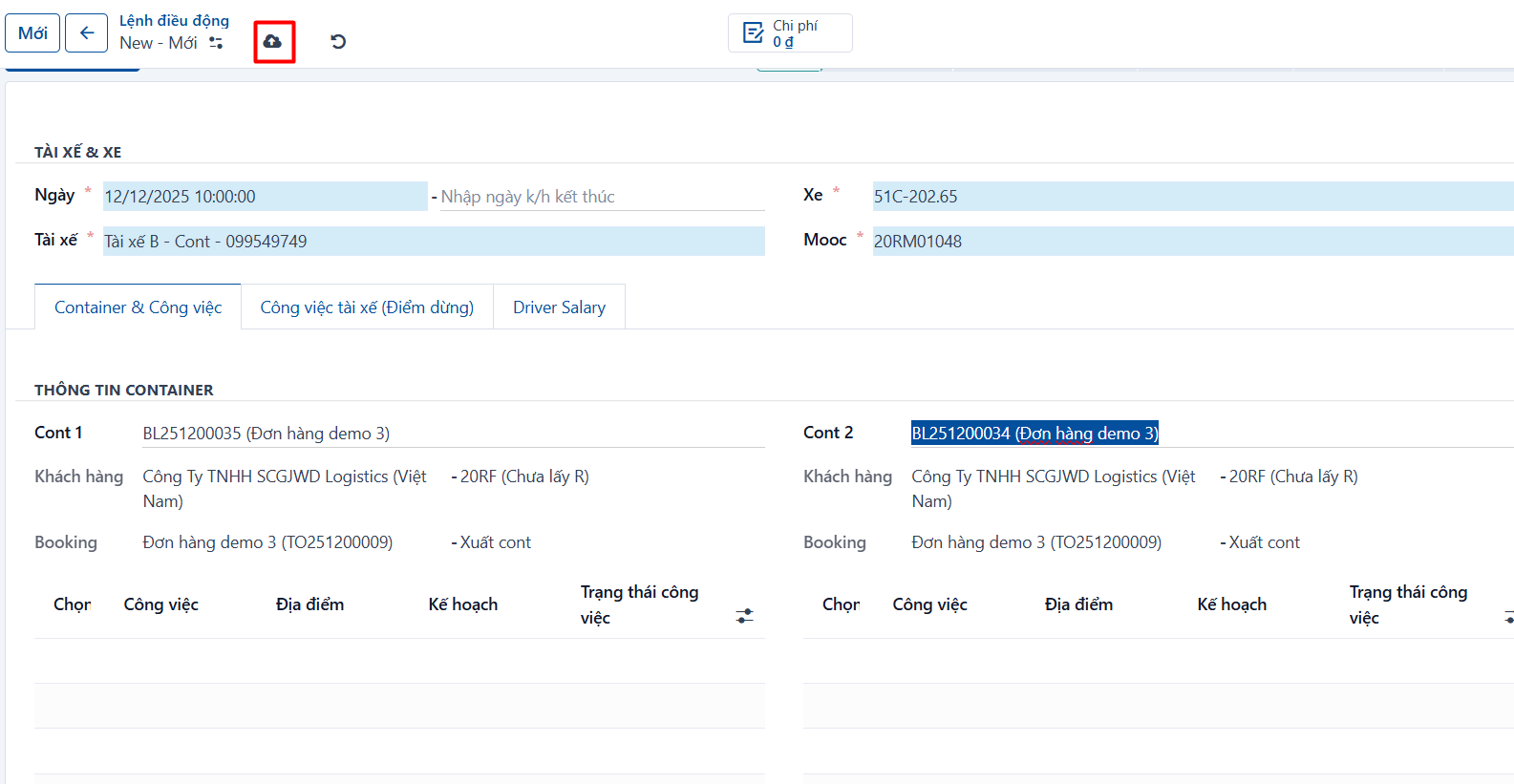
- Step 5: the dispatch order is created. Once you save it, the system assigns the task list of the container or waybill to the order.