Note
The driver mobile app already lets drivers request leave themselves. Once a driver submits a request, it is pushed to the system in the NEW state. If for any reason a dispatcher needs to create leave on a driver’s behalf, they can do it as described below.
Steps
Step 1
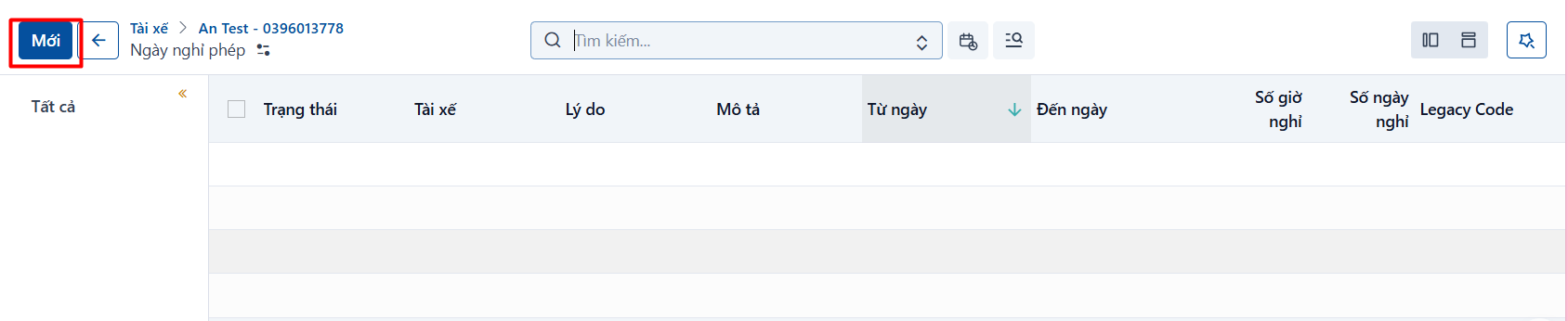
Go to the Leave menu and click the create button.
Step 2
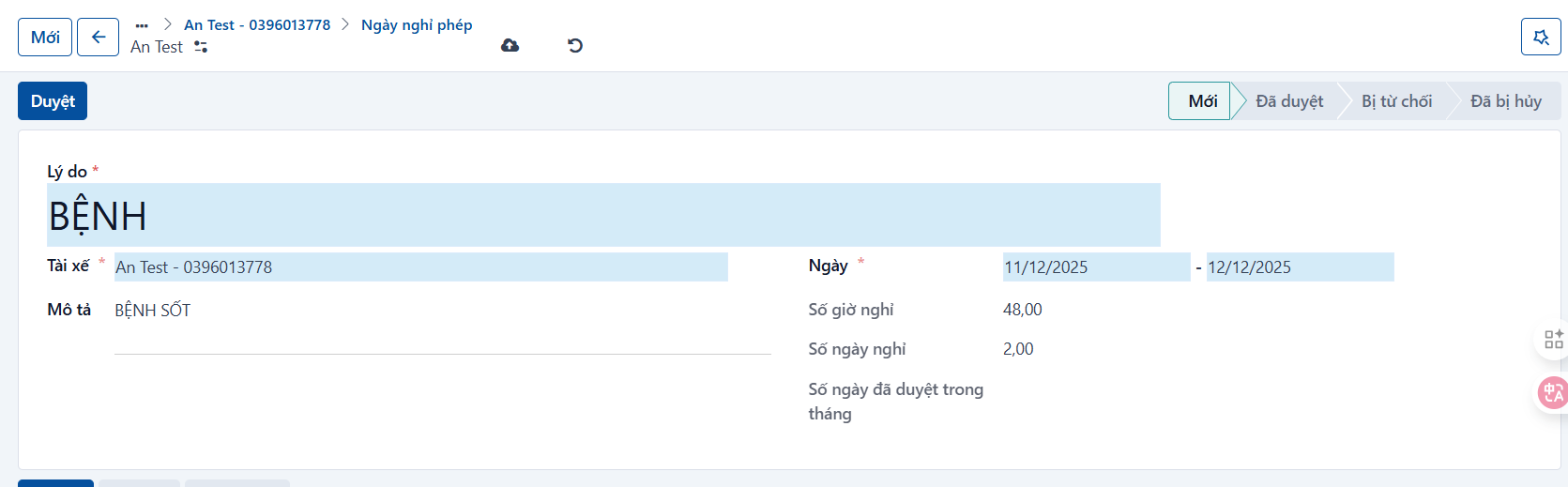
Enter the following information:
- Reason: Required. Enter the reason for the leave.
- Description: enter a description.
- Driver: select the driver. When you open this from a driver record, the system fills in the driver automatically.
- Dates: Required. Select the leave date range.
Step 3
Click the save button to finish creating the leave record. A newly created record is in the NEW state.
The system calculates the following three values automatically to give the dispatcher more context:
- Hours off: the system calculates the number of hours off from the selected date range.
- Days off: the system calculates the number of days off from the selected date range.
- Approved days this month: the system totals the days of leave already approved for this driver in the current month. The system highlights the figure in red when the approved days for the month reach or exceed the allowance (currently 4 days per month).
Starting from a driver record
You can also start creating leave from the Partners > Drivers screen.
Step 1
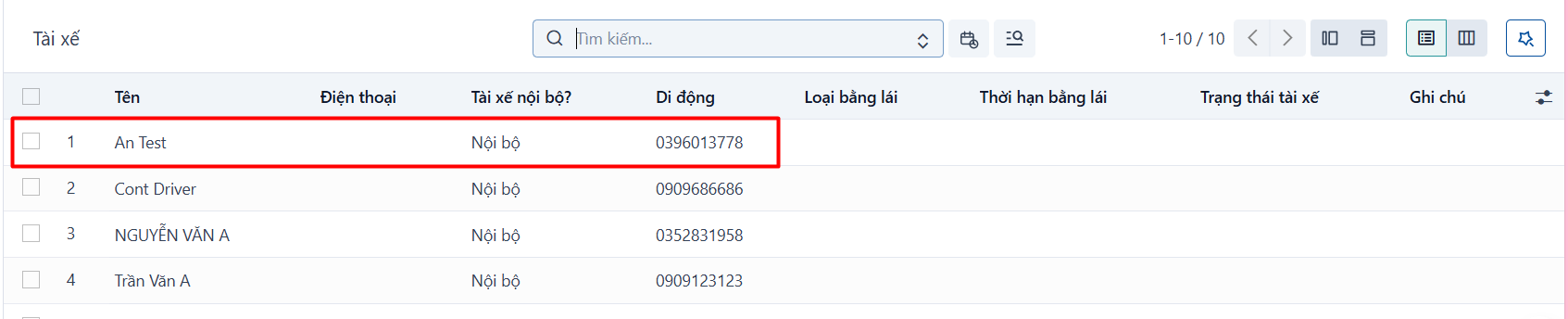
On the driver list, select the driver you want to create leave for.
Step 2
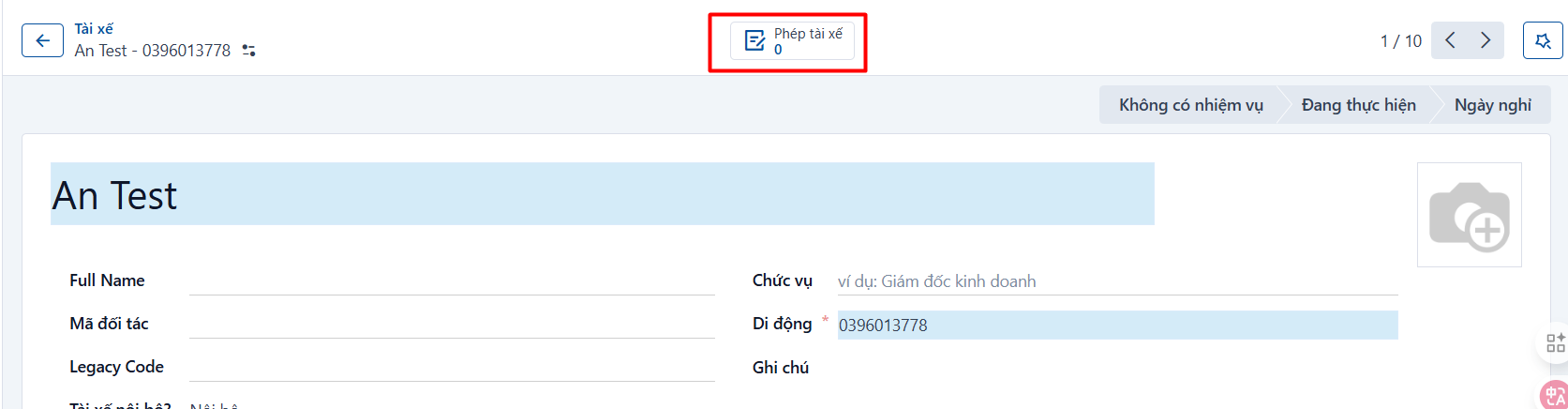
On the driver form view, click DRIVER LEAVE to open the driver’s leave management list.
Step 3
On the driver leave management list, click NEW to create a new leave record, then enter the information described above and click SAVE.