Access
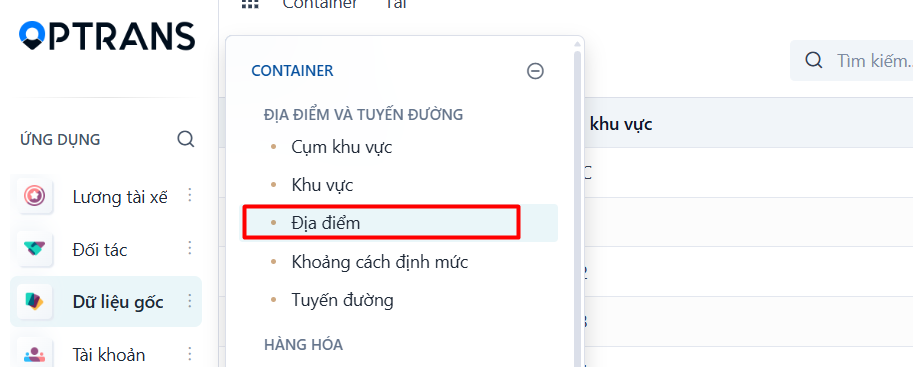
Menu: Master data > Locations
Access rights: Users with Master Data management rights
Use the path above to open the screen where you create a new shared location.
Steps
Step 1
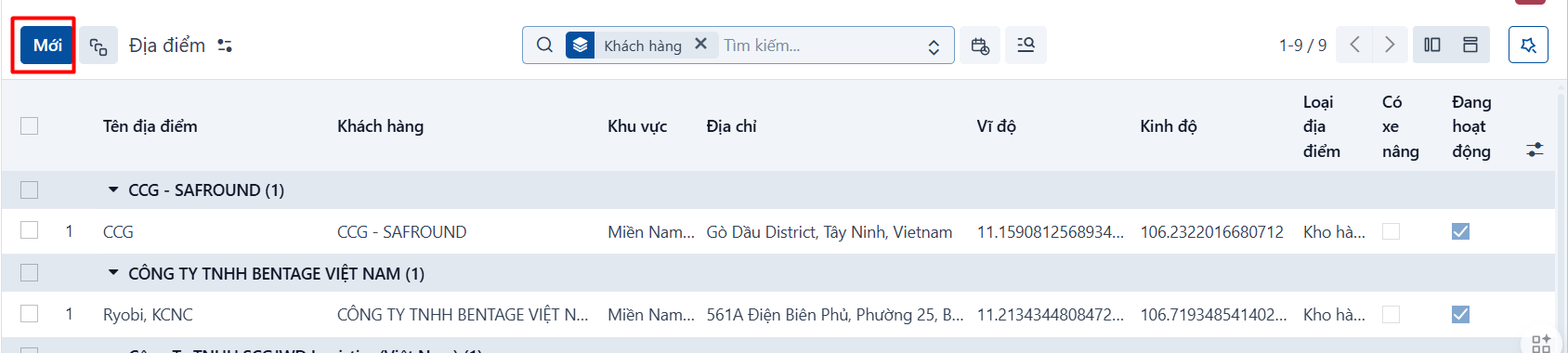
Click NEW to create a new shared location.
Step 2
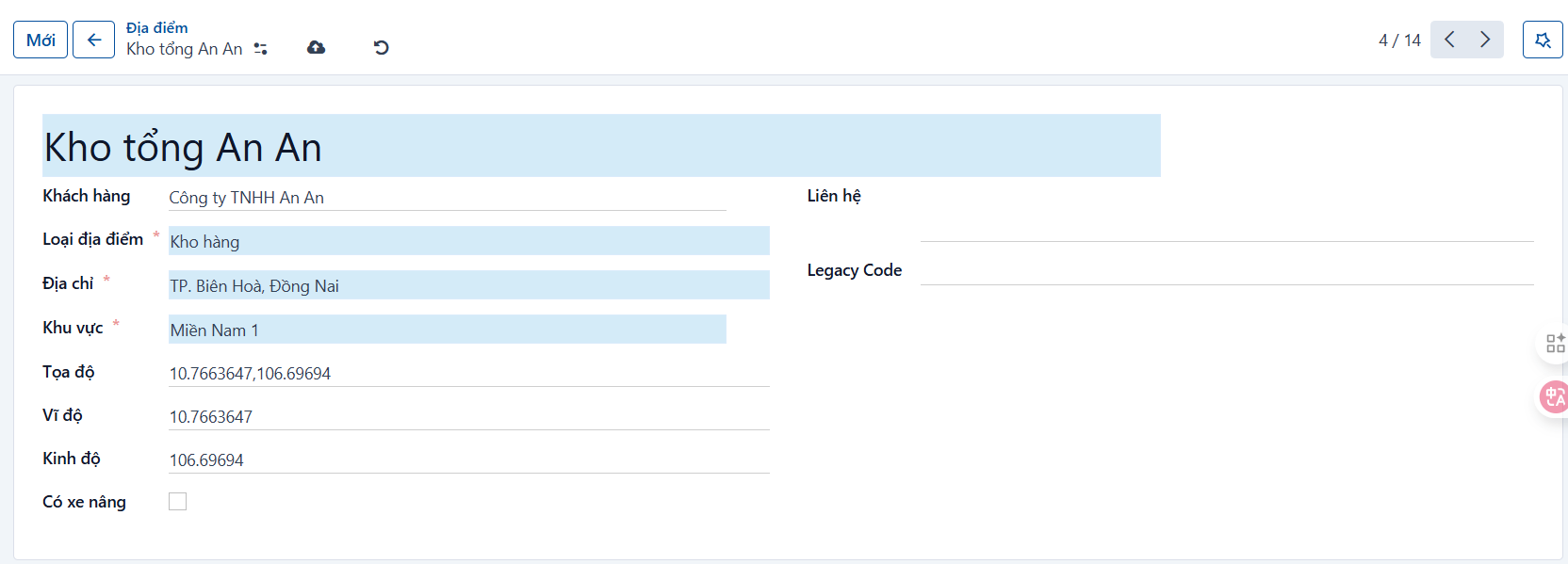
On the Form View of the shared location screen, enter the details of the location.
Fields to fill in
| No. | Field | Notes |
|---|---|---|
| 1 | Location name | Enter the name of the location. |
| 2 | Customer | Select a customer if this location is dedicated to one specific customer. |
| 3 | Location type | Select one of the types: Port, Warehouse, ICD, Depot and others. |
| 4 | Address | Enter the address of the location. |
| 5 | Area | Select the area of the address. The list of areas is configured on the Areas screen. |
| 6 | Longitude | Enter the longitude of the location. |
| 7 | Latitude | Enter the latitude of the location. |
| 8 | Has a forklift | Indicates whether the location has a forklift. |
| 9 | Contact | Enter the contact person’s details. |
Step 3
Click SAVE to save what you have entered.
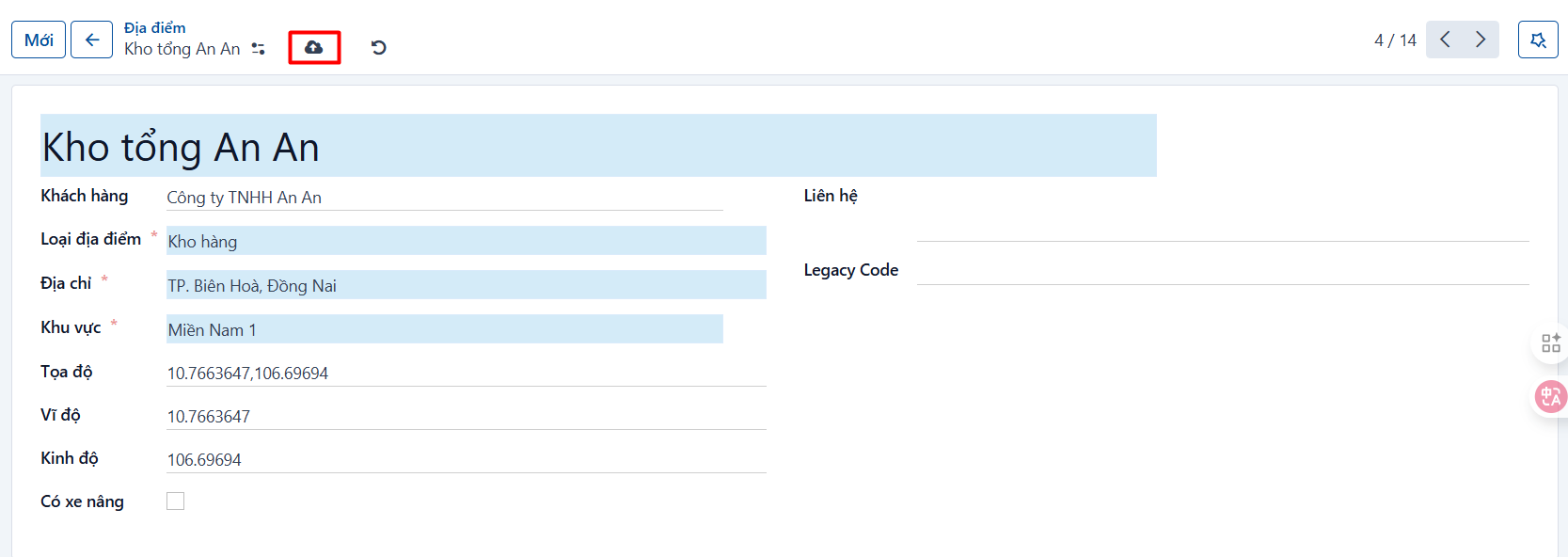
Result
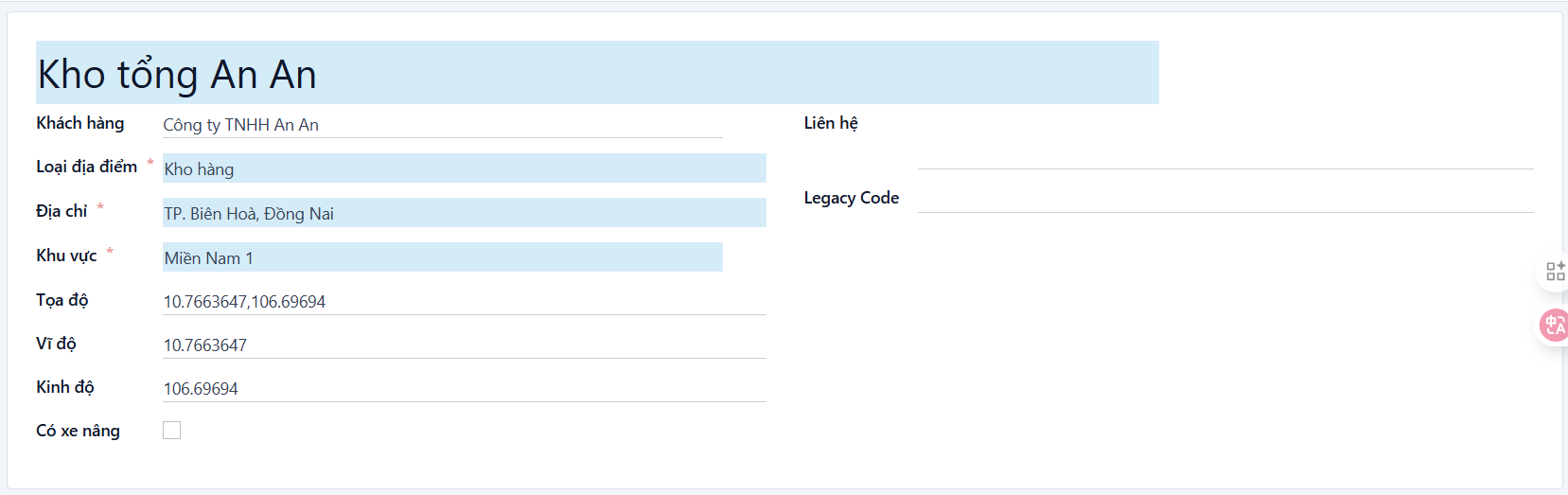
The record after it has been created successfully.