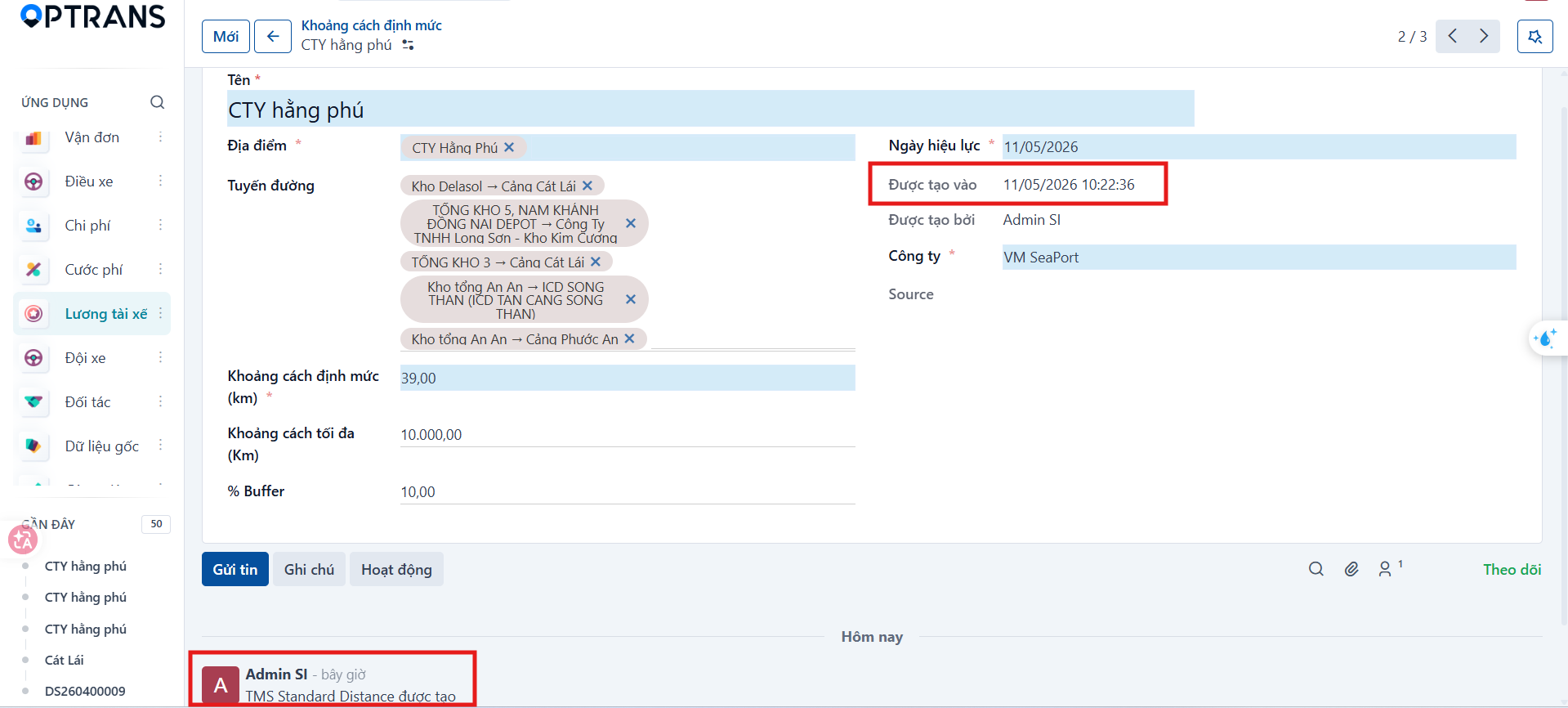
Purpose
Distance standards declare the standard distance for each route so you can control the operating mileage, calculate salary per kilometre or per route, compare against actual GPS data, and set the allowed margin of error.
Access
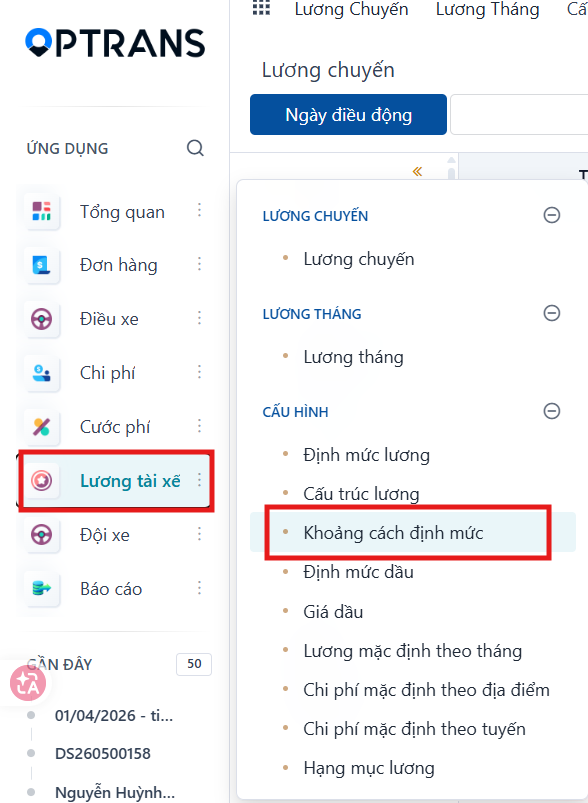
Menu: Driver salary > Distance standards
Creating a distance standard
Step 1
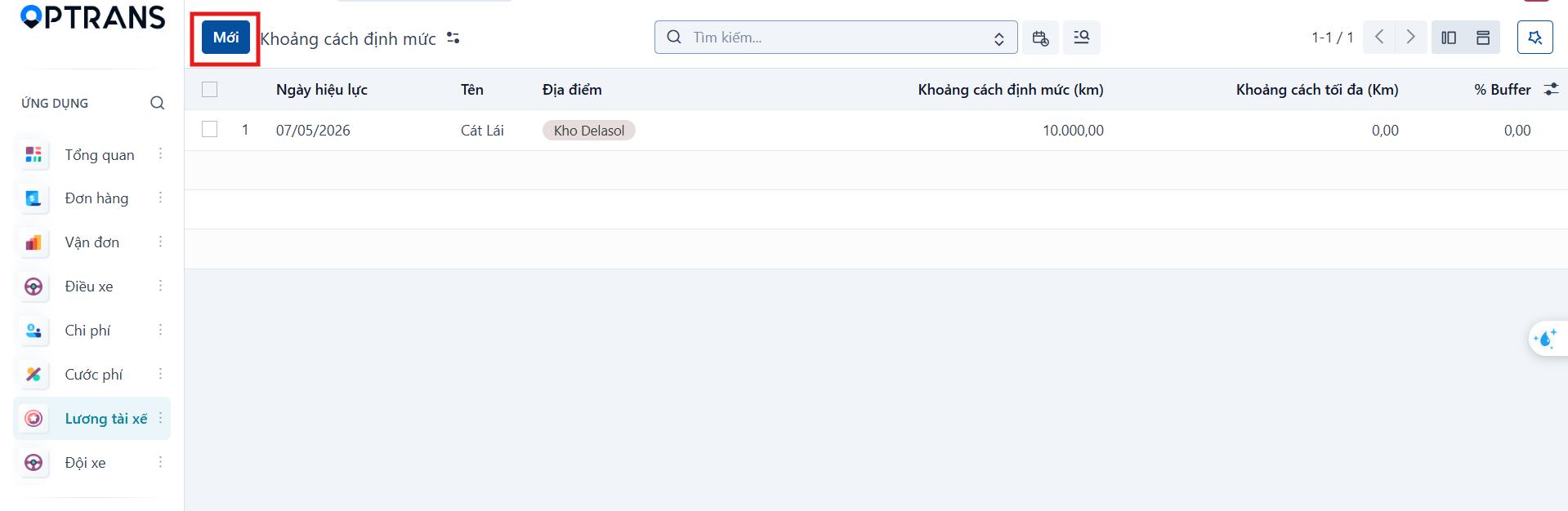
Click New.
Step 2
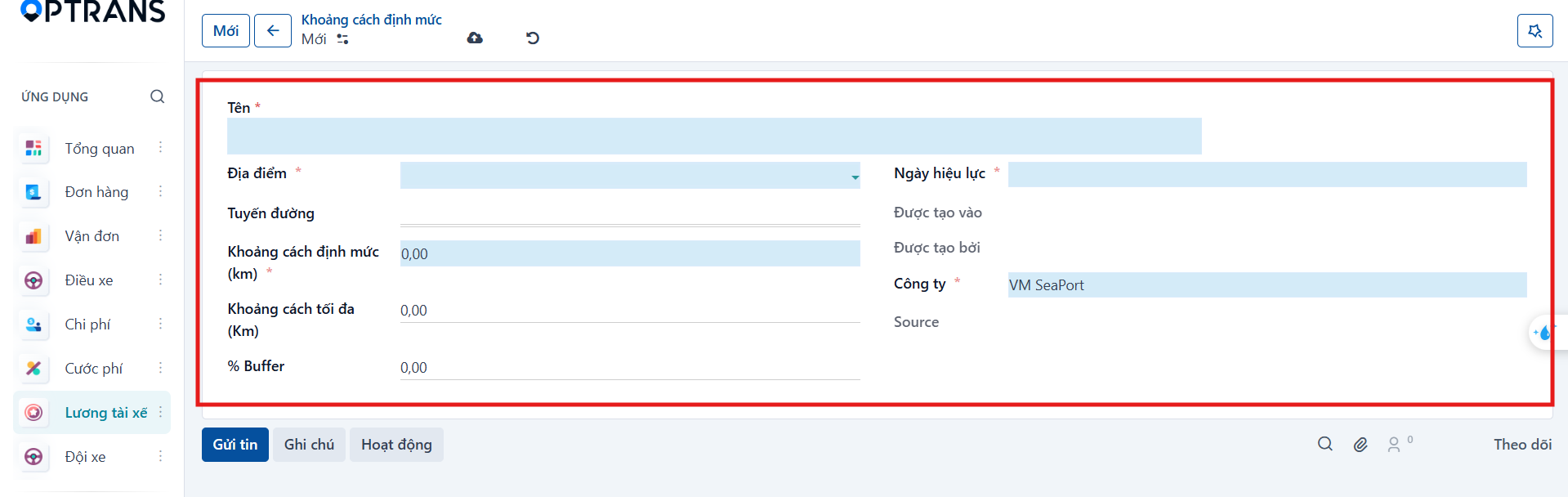
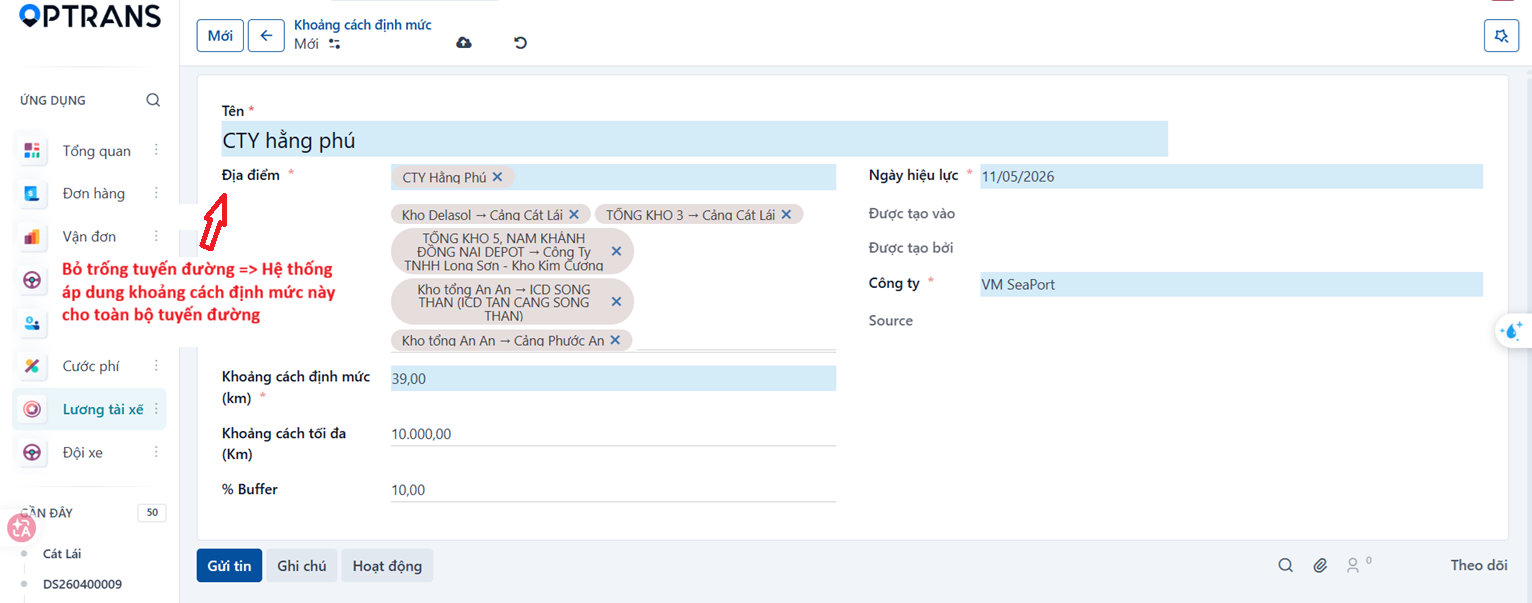
Enter the distance standard information.
| Field | Meaning |
|---|---|
| Name | Name of the distance standard. |
| Location | Location it applies to. |
| Route | Transport route it applies to. |
| Standard distance (km) | Standard number of kilometres for the route. |
| Maximum distance (km) | Maximum number of kilometres allowed; this is a limit, not the standard distance. |
| % Buffer | Percentage by which the standard distance may be exceeded. |
| Effective date | Date the standard starts applying. |
| Company | Company the data applies to. |
Step 3
Fill in the required fields: name, location, effective date, standard distance and company.
Step 4
Click Save manually.
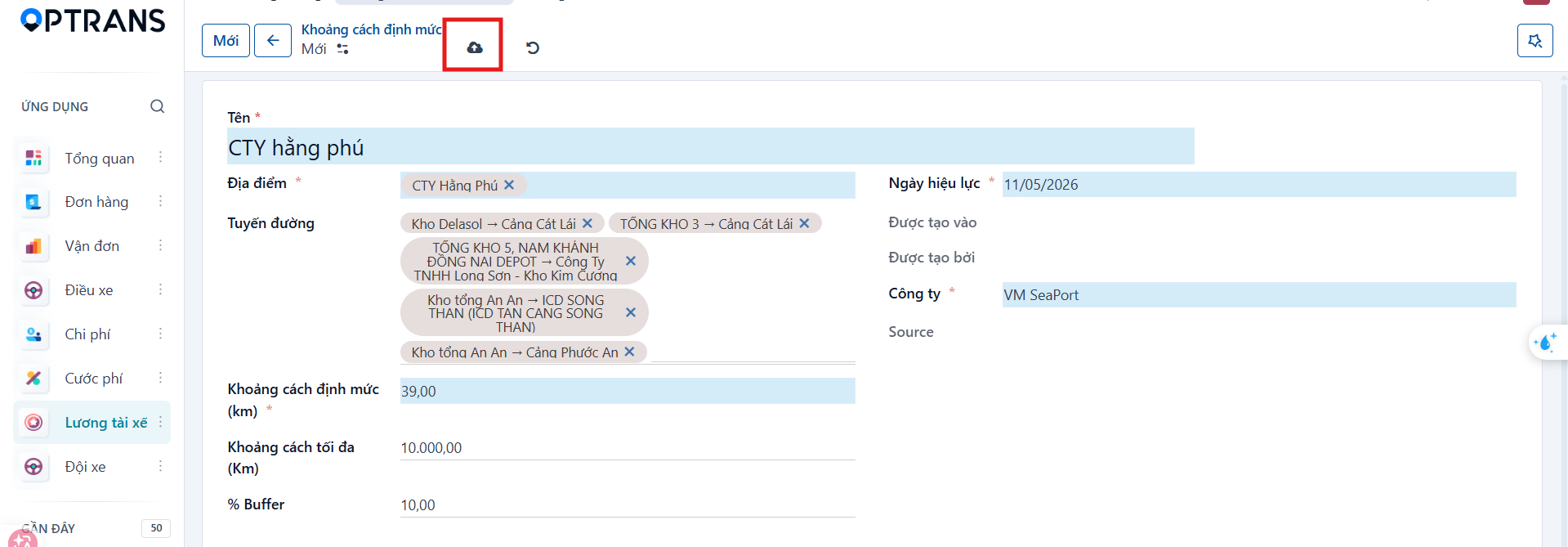
The new distance standard appears in the list.

Duplicating a distance standard
The Duplicate function quickly creates a new record from existing data; afterwards, review it and change whatever needs to differ.
Duplicating from the list
Step 1
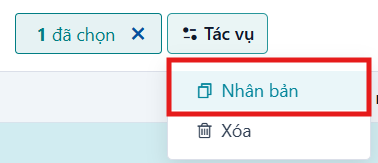
Select one or more rows in the list. The Actions button appears.


Step 2
Under Actions, select Duplicate.
Step 3
The system creates the new record and shows it at the top of the list.

Duplicating from the details screen
Step 1
Open the record you want to duplicate.

Step 2
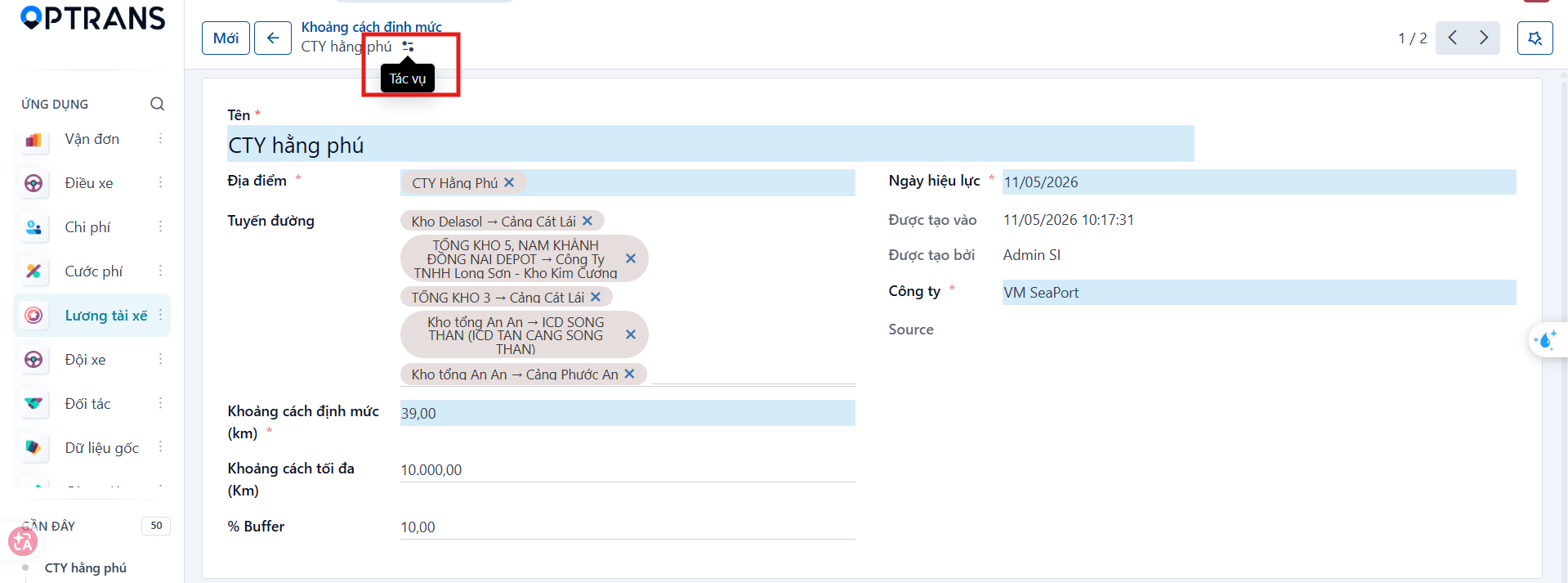
Select the Actions icon on the details screen.

Step 3
Select Duplicate.

The system opens the newly created record.