Note
A booking sent by a customer normally becomes one booking or order in the system.
In some cases, though, one customer booking has to be split into several bookings or orders in the system. The dispatcher can split it as needed.
Creating a new booking or order
Step 1
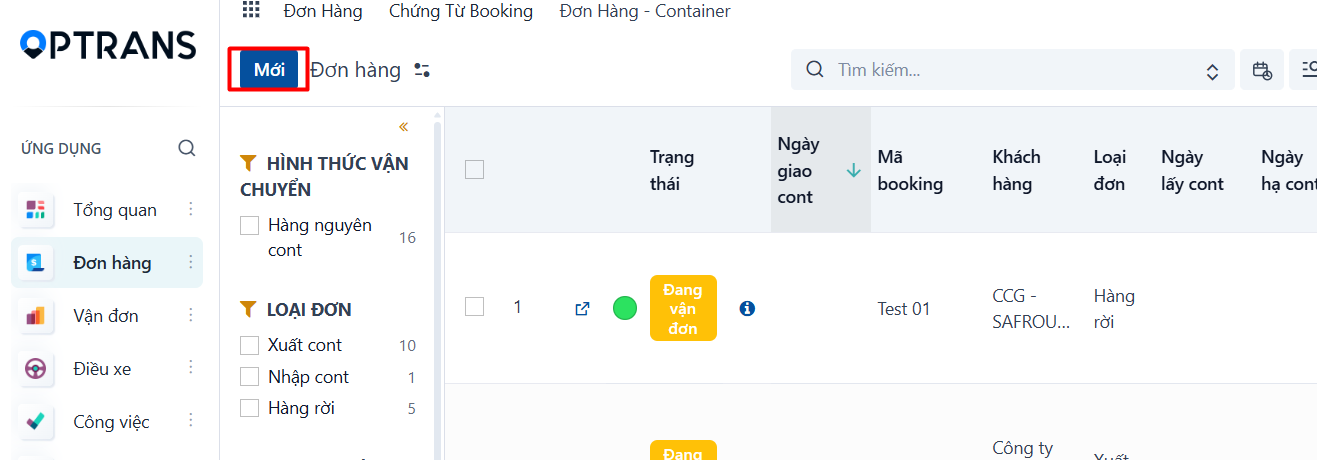
Go to a booking or order menu → click New.
Step 2
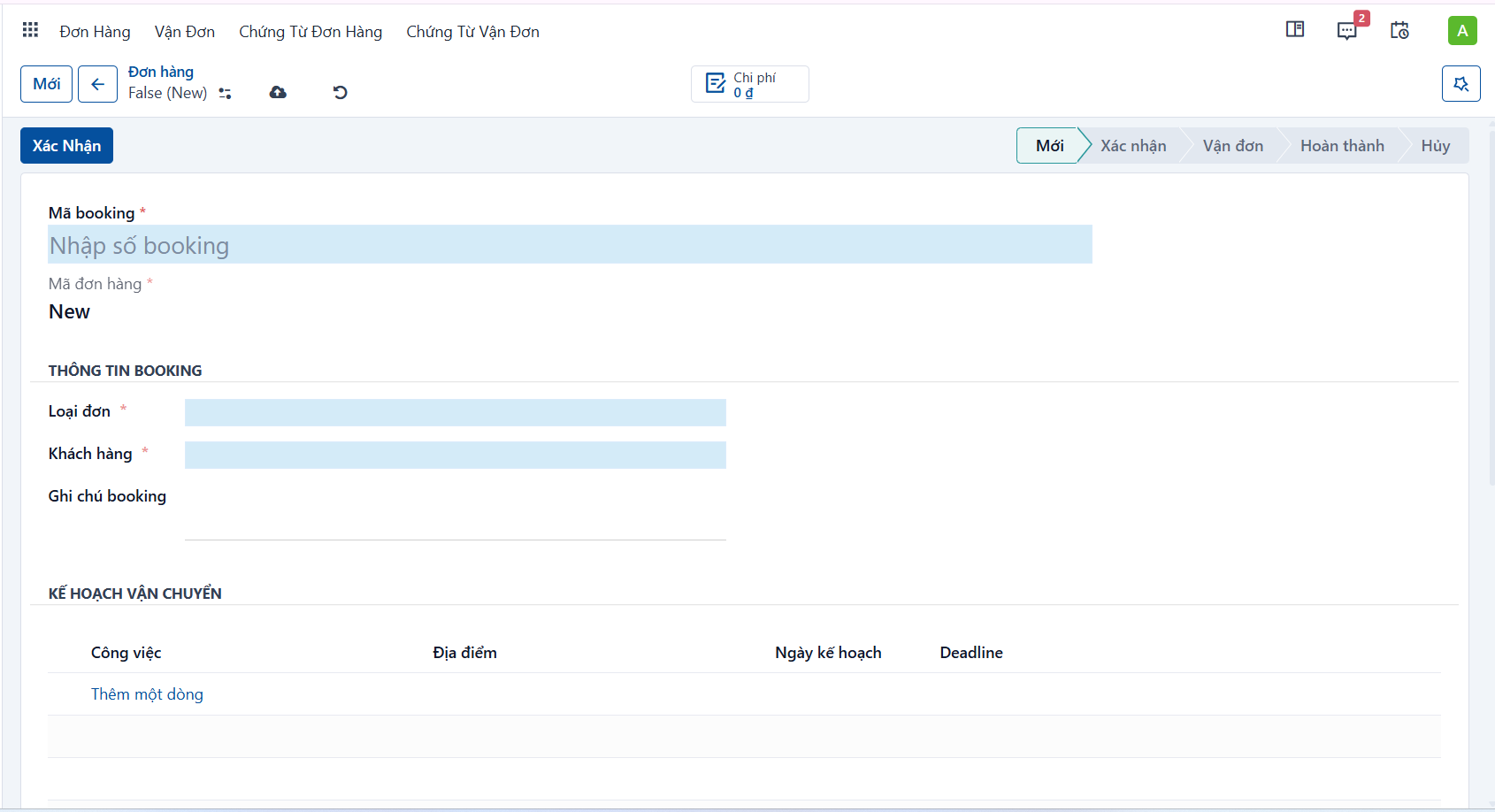
Enter the main information of the order.
| Field | Description |
|---|---|
| Booking code | Enter the booking number or the reference order number. |
| Order code | Leave this empty; the system generates it. |
| Customer | Select the customer. Type a name or a phone number to search. |
| Tracking code | Leave this empty; the system generates it. |
| Person in charge | Select the person in charge of the booking on the customer side. |
| Internal person in charge | The person in charge of this booking inside your company. The system defaults to whoever created the booking; you can change it. |
| Order type | Select an order type. The order type decides what other information the system shows — order documents, the default task list, and so on. The order types are: - Export a full container: - For a full container export booking. - Default tasks: pick up empty container, drop off empty container, pick up laden container, deliver laden container. - Import a full container: - For a full container import booking. - Default tasks: pick up laden container, deliver laden container, pick up empty container, return empty container. - Move an empty container: - For moving a container between ports or depots. - Default tasks: pick up empty container, drop off empty container. - Move a laden container: - For moving a laden container between domestic ports or depots. - Default tasks: pick up laden container, deliver laden container. - Bulk cargo: - For carrying cargo on a flatbed or skeletal trailer. - Default tasks: pick up cargo, deliver cargo. |
| Booking note | Enter a note for the booking or order — for example the list of places where an empty container can be picked up. |
Step 3
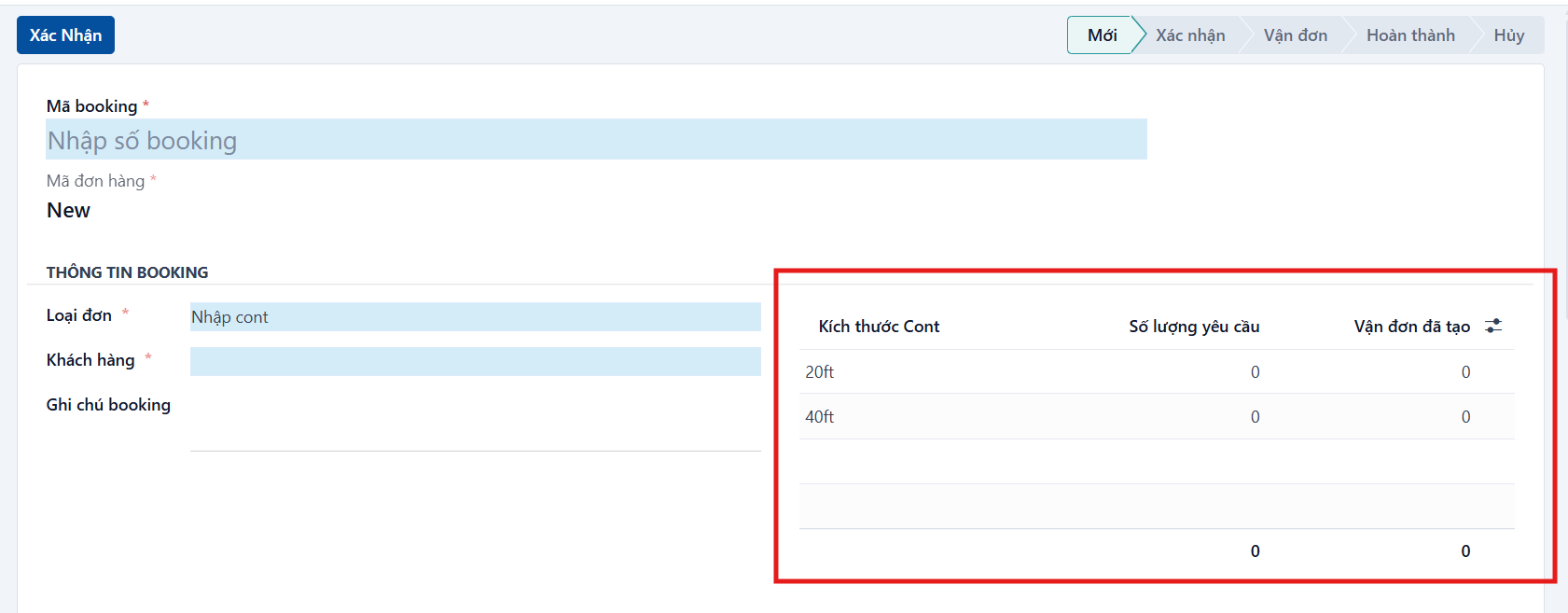
Enter the order size, which is the number of containers the customer has asked you to carry for this booking.
- The system loads this table when you select the Order type. Enter the number of containers of each type in the Quantity column.
Step 4
Attach the documents of the order.
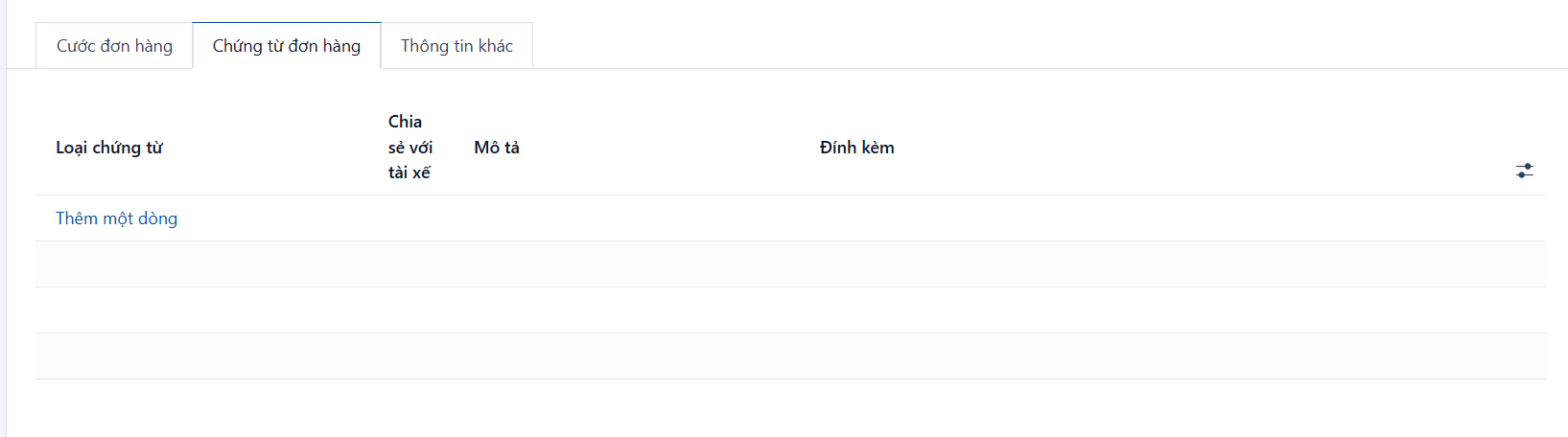
| Field | Description |
|---|---|
| Document type | When you select the Order type, the system loads this list from what has been configured. |
| Share with the driver | Lets you share the document attached to the order so the driver has everything they need while working. |
| Description | Add details for each document. |
| Attachment | Click ATTACH DOCUMENT to upload files from your computer. |
| Hard copy status | Two values: - No hard copy - Hard copy received If the customer has already given you the hard copy of that document, set it to “Hard copy received” to record that. |
If you need documents beyond the default list, click “Add a line” to add another document type to the order.
Step 5
Enter the transport plan.
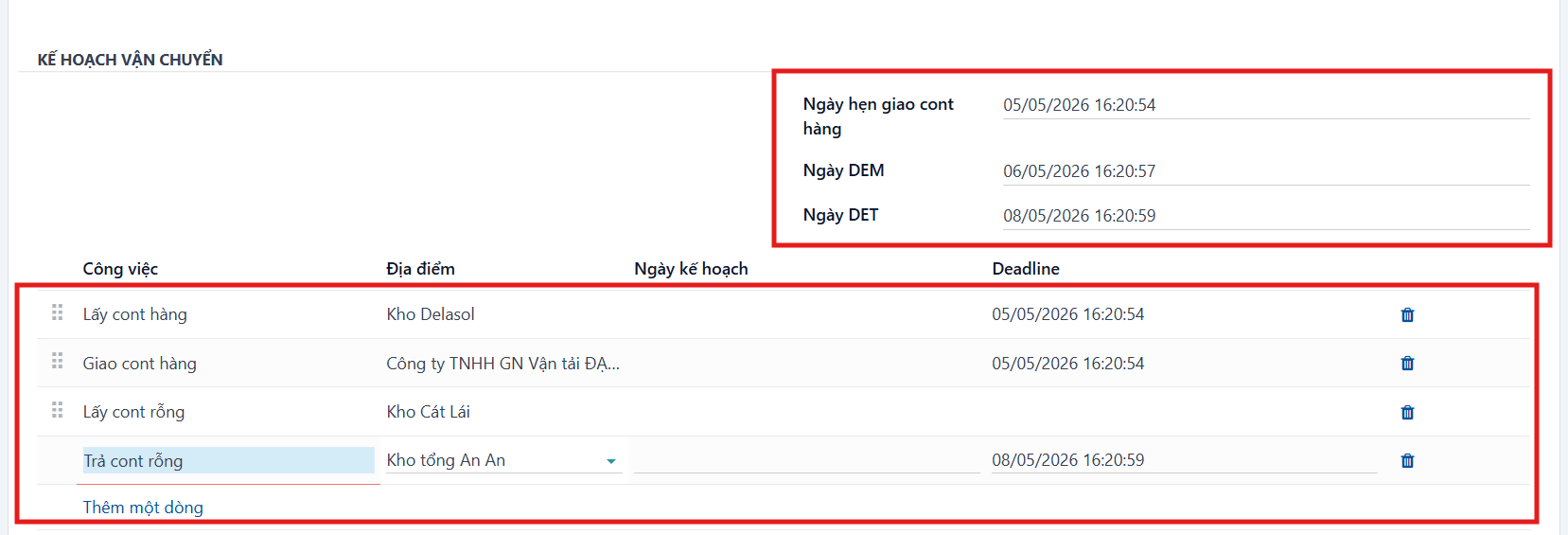
| Field | Description |
|---|---|
| Empty container delivery deadline | Enter the time the customer wants the empty container delivered to their warehouse. Applies to full container export orders. |
| SI Cutoff | Enter the SI Cutoff time. Applies to full container export orders. |
| Port Cutoff | Enter the SI/CY Cutoff time. Applies to full container export orders. |
| Laden container delivery date | Enter the time the customer wants the laden container delivered to their warehouse. Applies to full container import orders. |
| DEM date | Enter the DEM time. Applies to full container import orders. |
| DET date | Enter the DET time. Applies to full container import orders. |
| Order task list table | Depending on the order type you selected, the system loads the default task list already configured. This is the route of tasks the driver has to follow. You also need to fill in the location, planned date and deadline columns. |
Step 6
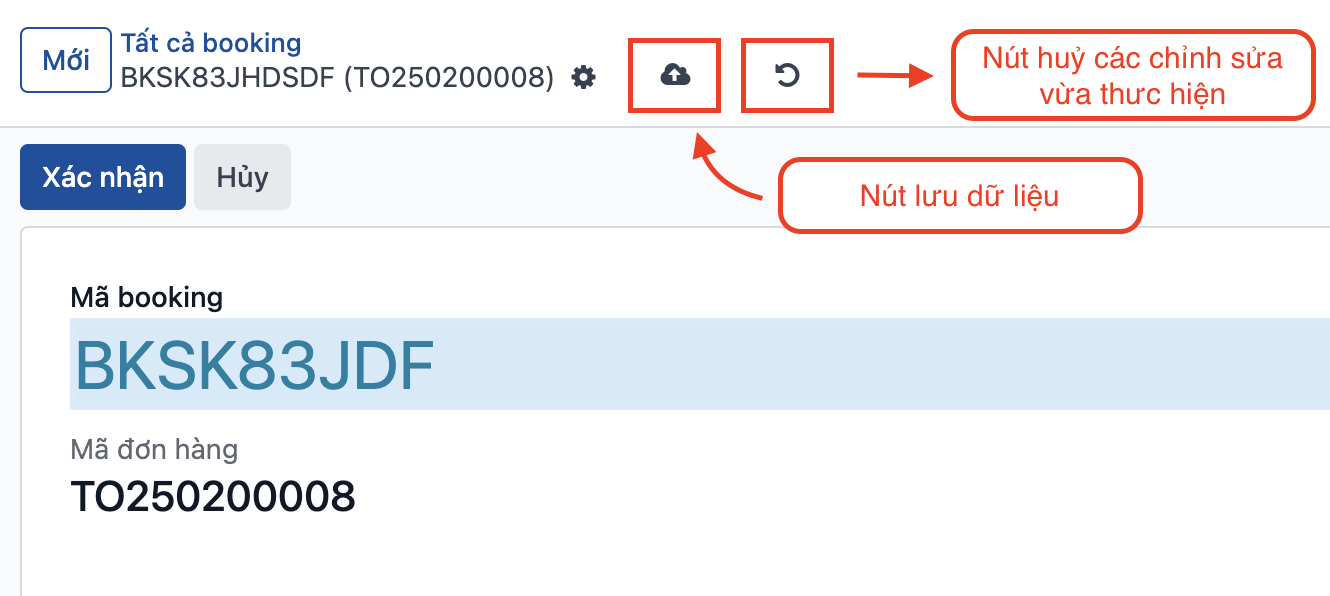
Click SAVE, or press CTRL + S, to save the order.
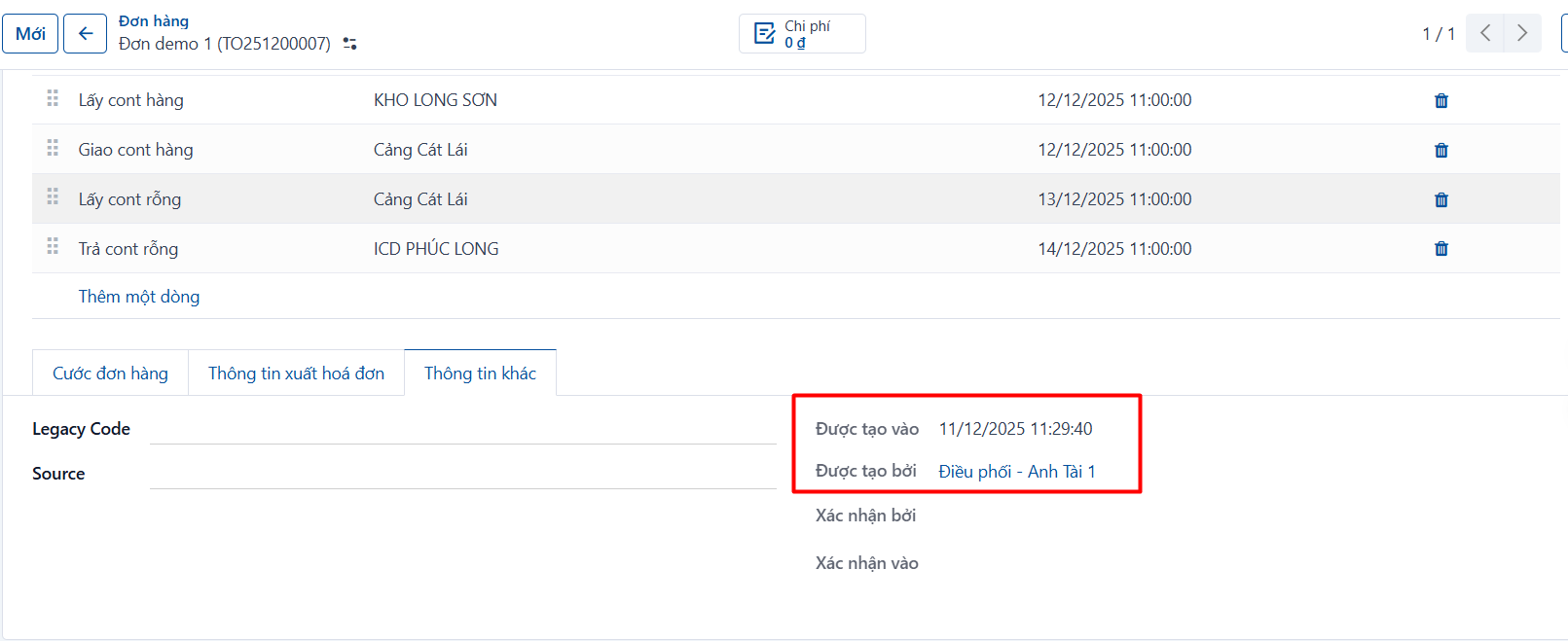
The system records who created the order and when on the [Other information] tab: